Adding SSH Key Pairs
If you have not already generated your key pairs, please see the documentation that relates to your operating system:
Note
This guide assumes you are either accessing Anvil from on-campus, or are connected to the Anvil VPN.
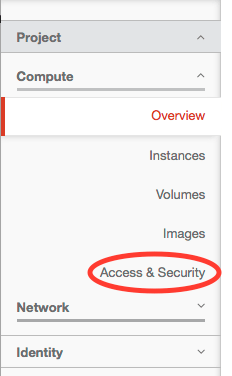
Log into the Anvil web dashboard at https://anvil.unl.edu using your HCC credentials. On the left-hand side navigation menu, click Access & Security.
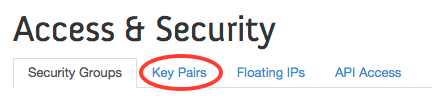
Choose the Key Pairs tab in the main window section.
Open your public key file, select the entire text, and copy it. On the right-hand side, click the Import Key Pair button.

In the pop-up window, fill in the Key Pair Name field with a convenient name. Paste the copied public key text in the larger Public Key box.
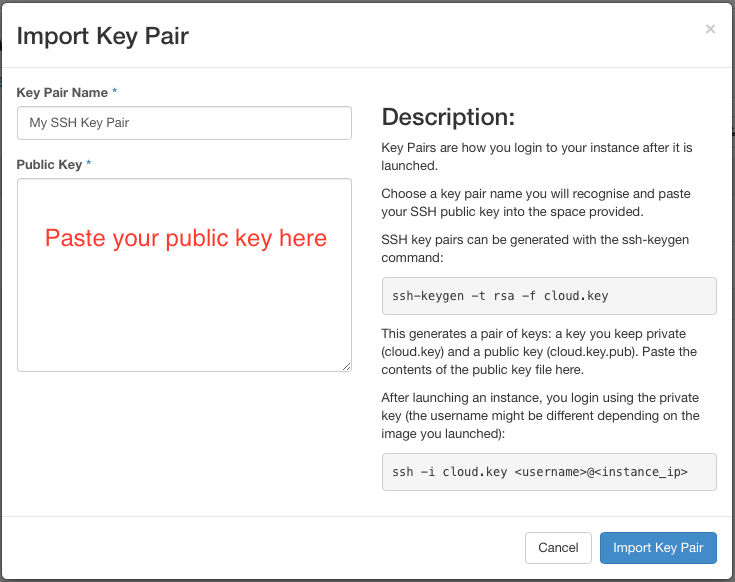
Click the Import Key Pair button to close the pop-up and save the key. You should then see an entry with the saved key (the fingerprint value will be different than the example below).

The key pair can now be associated with any newly created instances.