Connecting to Linux Instances from Mac
Note
This guide assumes you associated your SSH Key Pair with the instance when it was created, and that you are connected to the Anvil VPN.
Access to Linux instances is via standard SSH, however SSH keys are used as opposed to entering a username and password.
Start the built-in Terminal application, located in the Utilities folder under Applications.

Login into the web dashboard atn https://anvil.unl.edu. From the left-hand side menu, choose Instances.
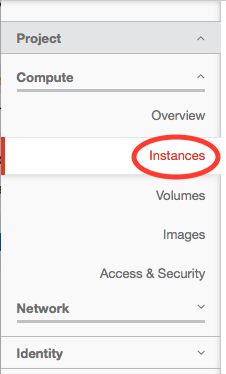
This will show a table with the running instances and a few details about them. Take note of the IP address entry; this is the address that will be used to connect.

In this example, the private key file is assumed to be on the desktop,
and named anvil_key. Depending on which Linux OS you're using in your
instance, the username to use will be different. See the
Available Images
page for a table with the username to use for each OS.
In the Terminal application, run the command:
ssh -i ~/Desktop/anvil_key centos@<ip address>
substituting the IP address of your instance. For the example here, it would look like:
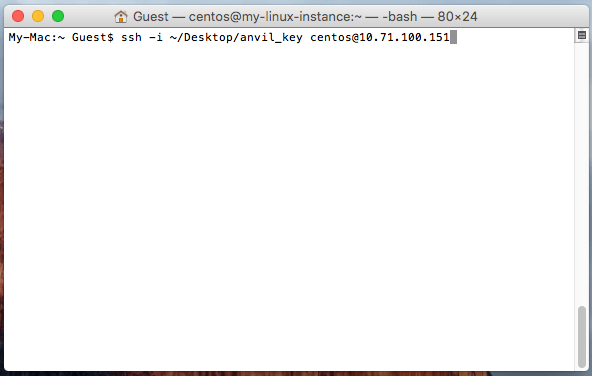
My-Mac:~ Guest$ ssh -i ~/Desktop/anvil_key centos@10.71.100.151
The first time you connect, you will get a warning; type yes and hit
Enter to continue connecting. Subsequent connections will not show this
warning.
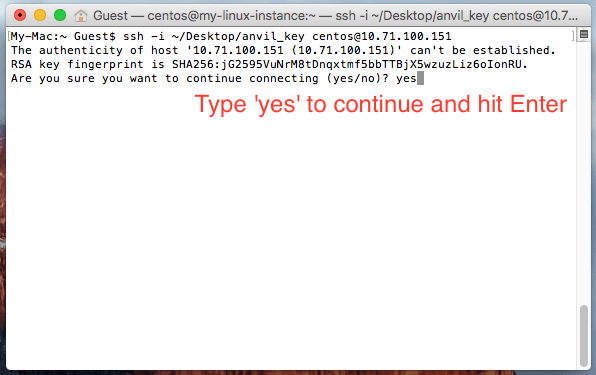
[My-Mac:~ Guest$ ssh -i ~/Desktop/anvil_key centos@10.71.100.151
The authenticity of host '10.71.100.151 (10.71.100.151)' can't be established.
RSA key fingerprint is SHA256:jG2595VuNrM8tDnqxtmf5bbTTBjX5wzuzLiz6oIonRU.
Are you sure you want to continue connecting (yes/no)? yes
You will now be logged into your instance and can use it.
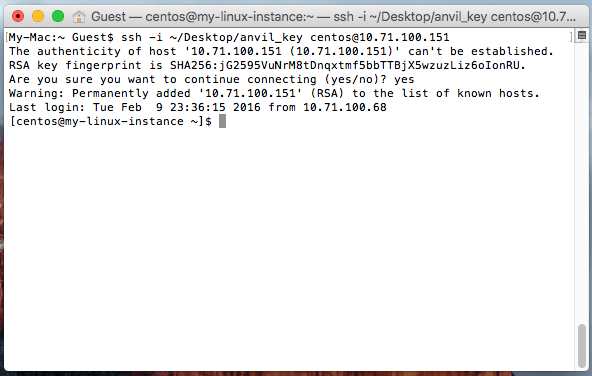
[My-Mac:~ Guest$ ssh -i ~/Desktop/anvil_key centos@10.71.100.151
The authenticity of host '10.71.100.151 (10.71.100.151)' can't be established.
RSA key fingerprint is SHA256:jG2595VuNrM8tDnqxtmf5bbTTBjX5wzuzLiz6oIonRU.
Are you sure you want to continue connecting (yes/no)? yes
Warning: Permanently added '10.71.100.151' (RSA) to the list of known hosts.
Last login: Tue Feb  9 23:36:15 2016 from 10.71.100.68
[centos@my-linux-instance ~]$