MacOS
Within MacOS, NRDStor can be added as a location for data and appear similar to an external USB hard drive.
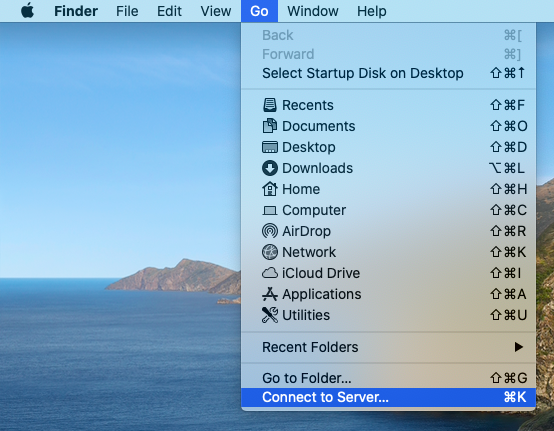
Under Finder's "Go" menu, select "Connect to a server".
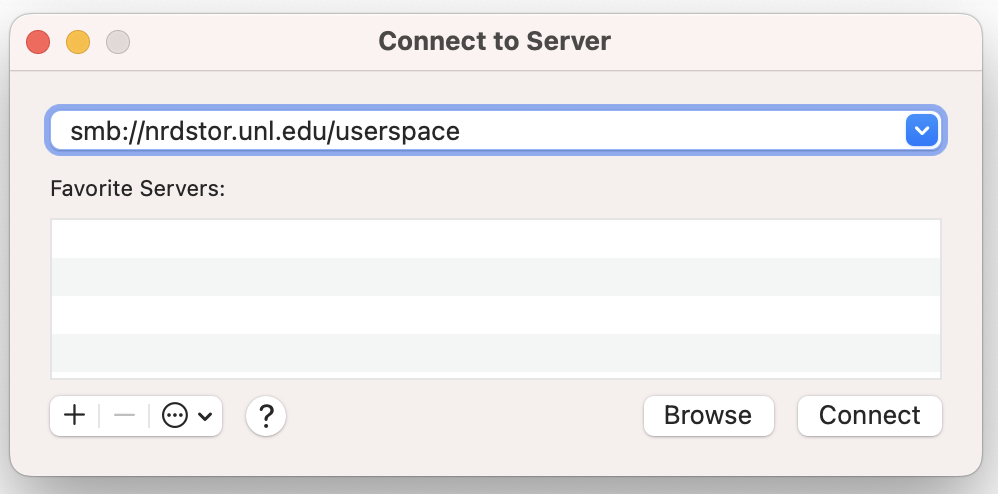
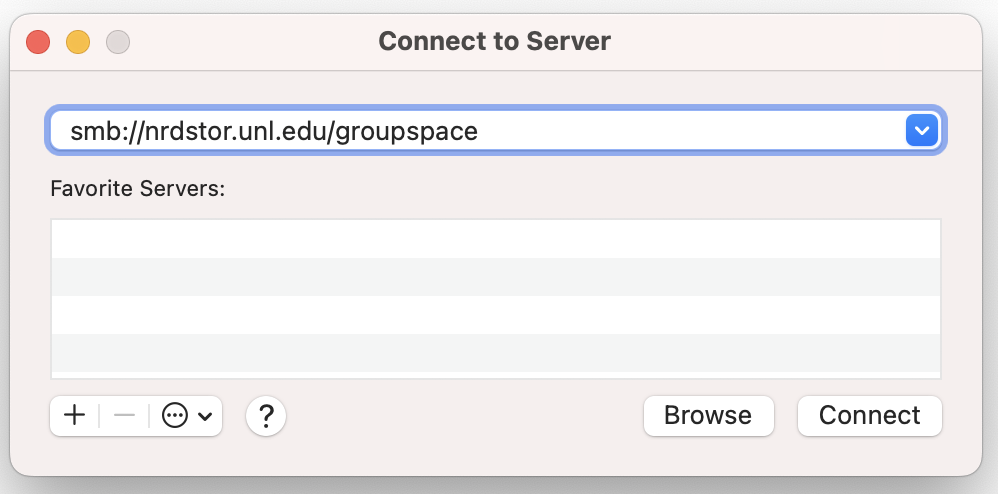
In the address box, enter "smb://nrdstor.unl.edu/userspace" to access your user folder, or use "smb://nrdstor.unl.edu/groupspace" to access your primary groups folder.
!!! note %}} The words userspace and groupspace used to access the NRDStor directory under a primary group are literal words, and not placeholders for your HCC group and username.
If you want to add a place from a secondary group, such as another research group, then you will need to specify the full path in the address box. Enter "//nrdstor.unl.edu/nrdstor/GROUP/USER", replacing "GROUP" and "USER" with your HCC group and username. For example, the account, "hccdemo" who is a member of "demo" would enter "//nrdstor.unl.edu/nrdstor/demo/hccdemo".
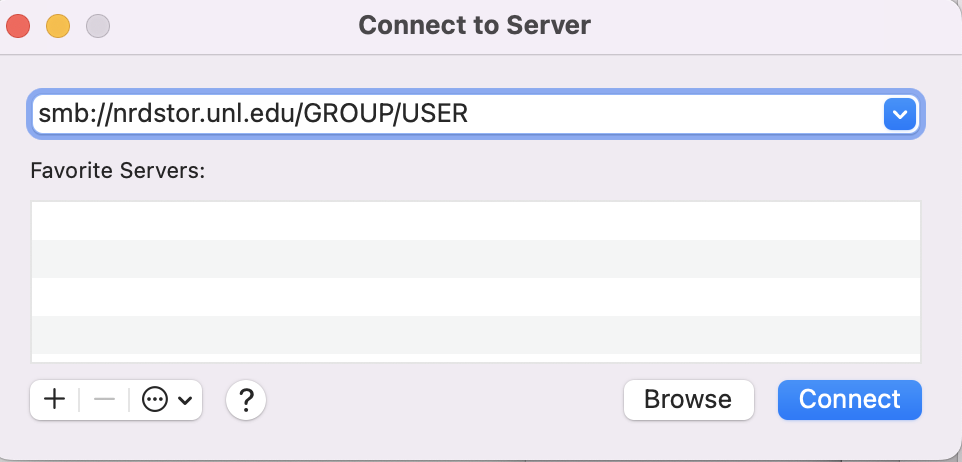
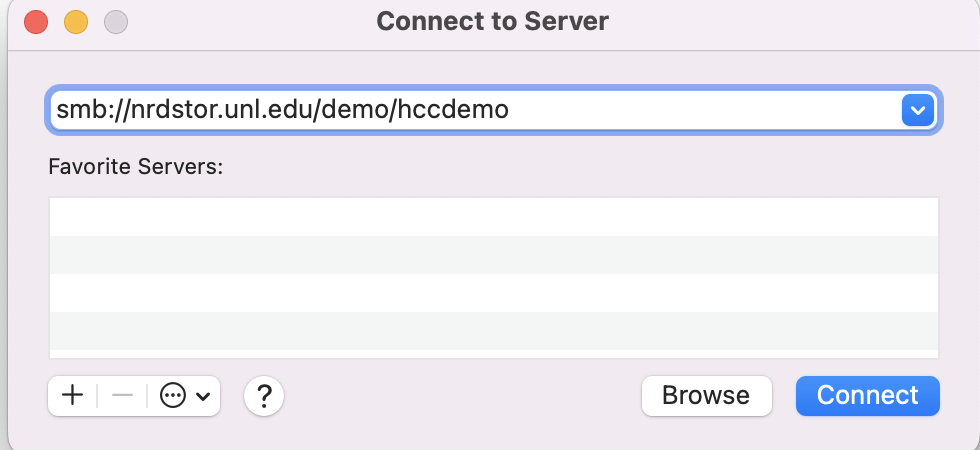
Click on "Connect". You will be prompted to sign in to an account. Use your University credentials to sign in, NOT your HCC credentials. For UNL, UNK, and UNO users both your University username and email address will work as the username. For UNMC users, you must use your NUID in the format of <NUID>@nead.nebraska.edu as the username, replacing <NUID> with your 8 digit NUID.
Note
For UNMC users, you must use your NUID username and password to login (not UNMC credentials). Use the format 00000000@nead.nebraska.edu for your username, where 00000000 is your NUID.
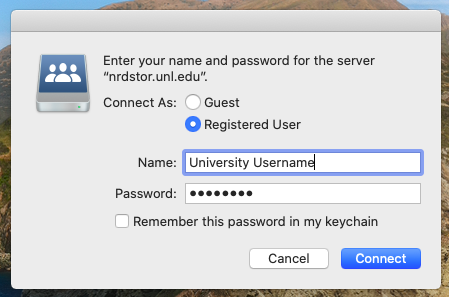
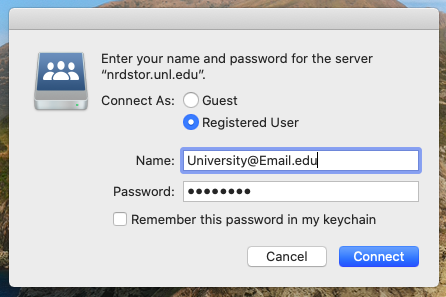
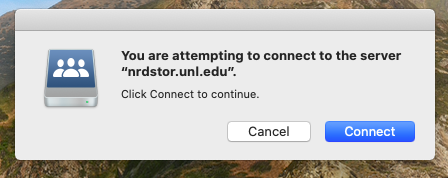
After that a warning message might appear if you try to connect at the first time.
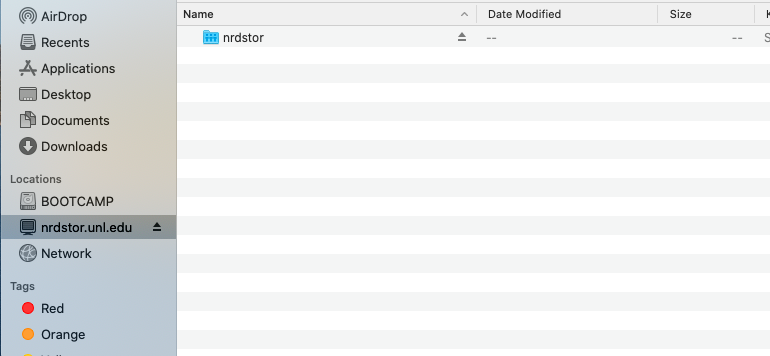
Once authentication has been successful, NRDStor will now be available in finder as a remote location.
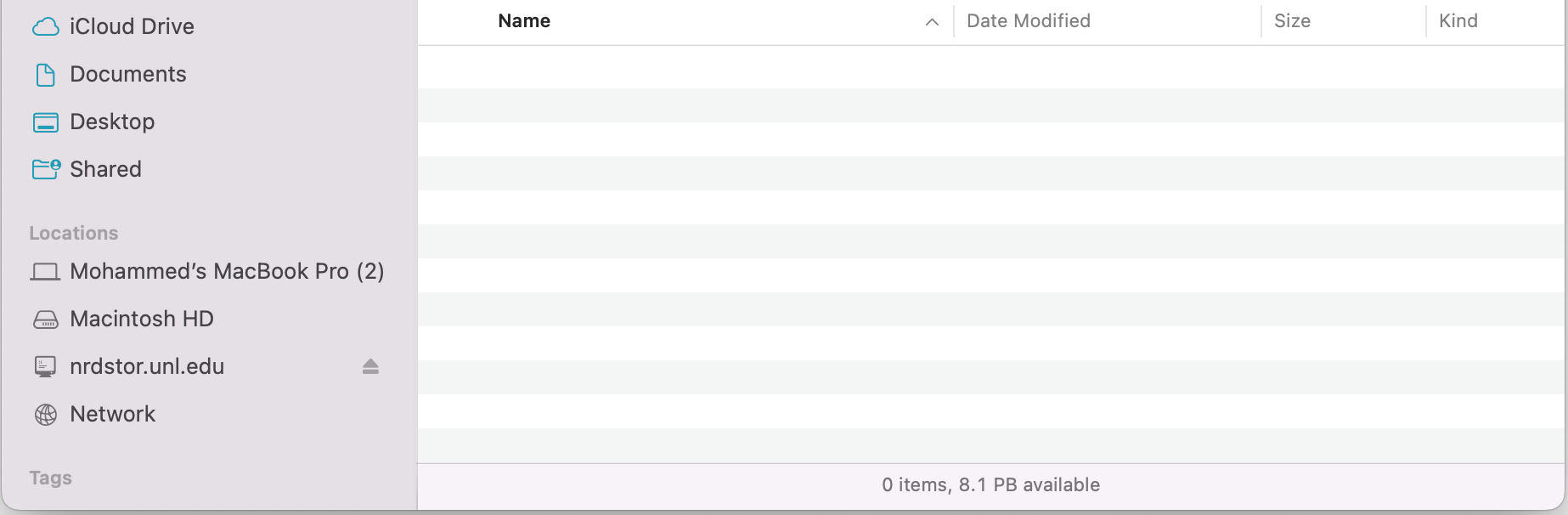
In the future, NRDStor can be access from the side bar under "Locations" and you can navigate to your group and user directories.