File Transfer with CyberDuck
Using Cyberduck
Note
Cyberduck versions 8.4.4 to 8.4.5 are incompatible with Duo authentication. Upgrading to 8.5.0 or later should resolve the issue.
If you wish to use a GUI for data transfer, be aware that not all programs will function correctly with Duo two-factor authentication. Mac users are recommended to use Cyberduck. It is compatible with Duo, but a few settings need to be changed.
Note
Note that the screenshots given here use Cyberduck 8.6.0. Different versions may have different prompts.
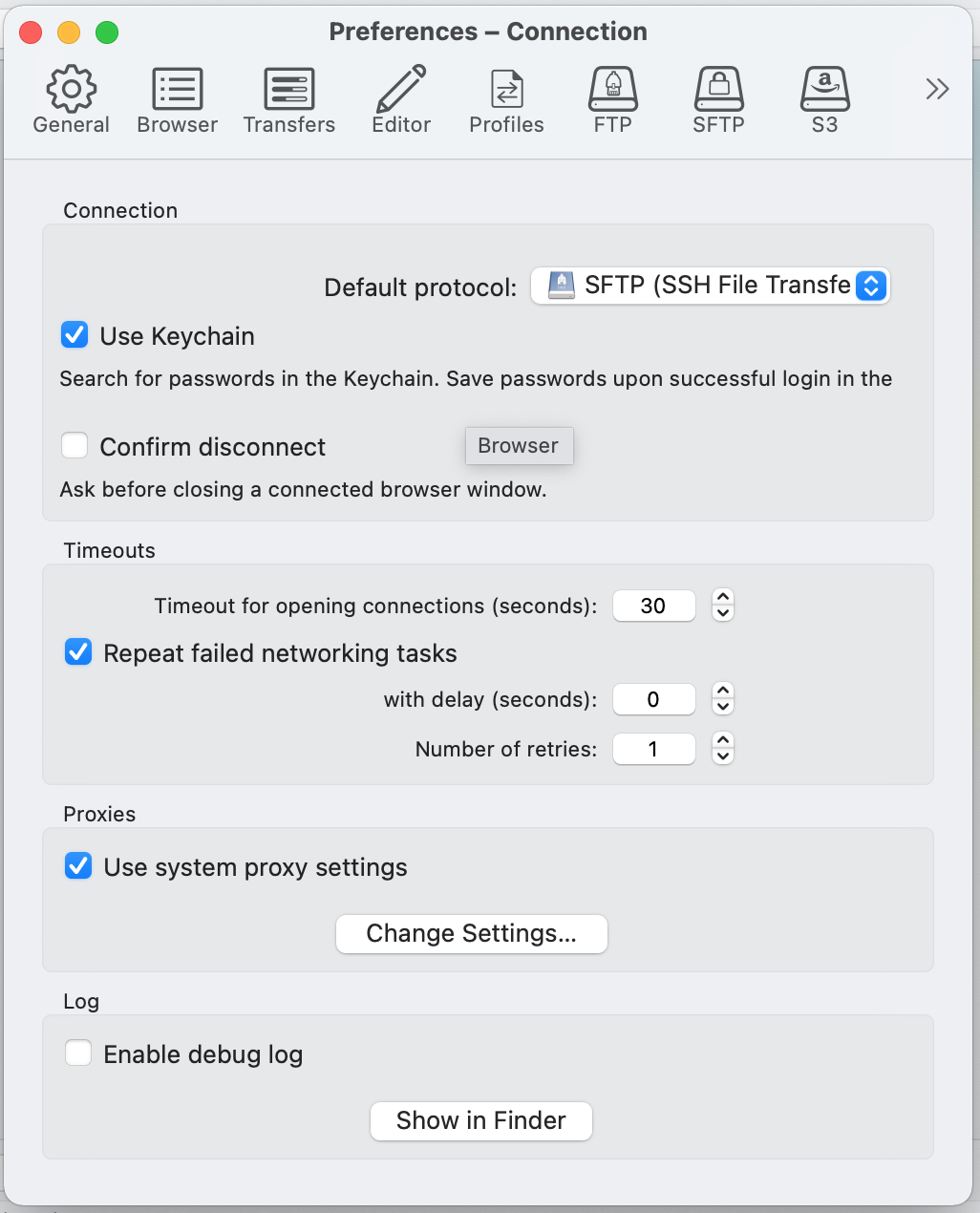
Under Preferences - Connection, change the default protocol to SFTP:
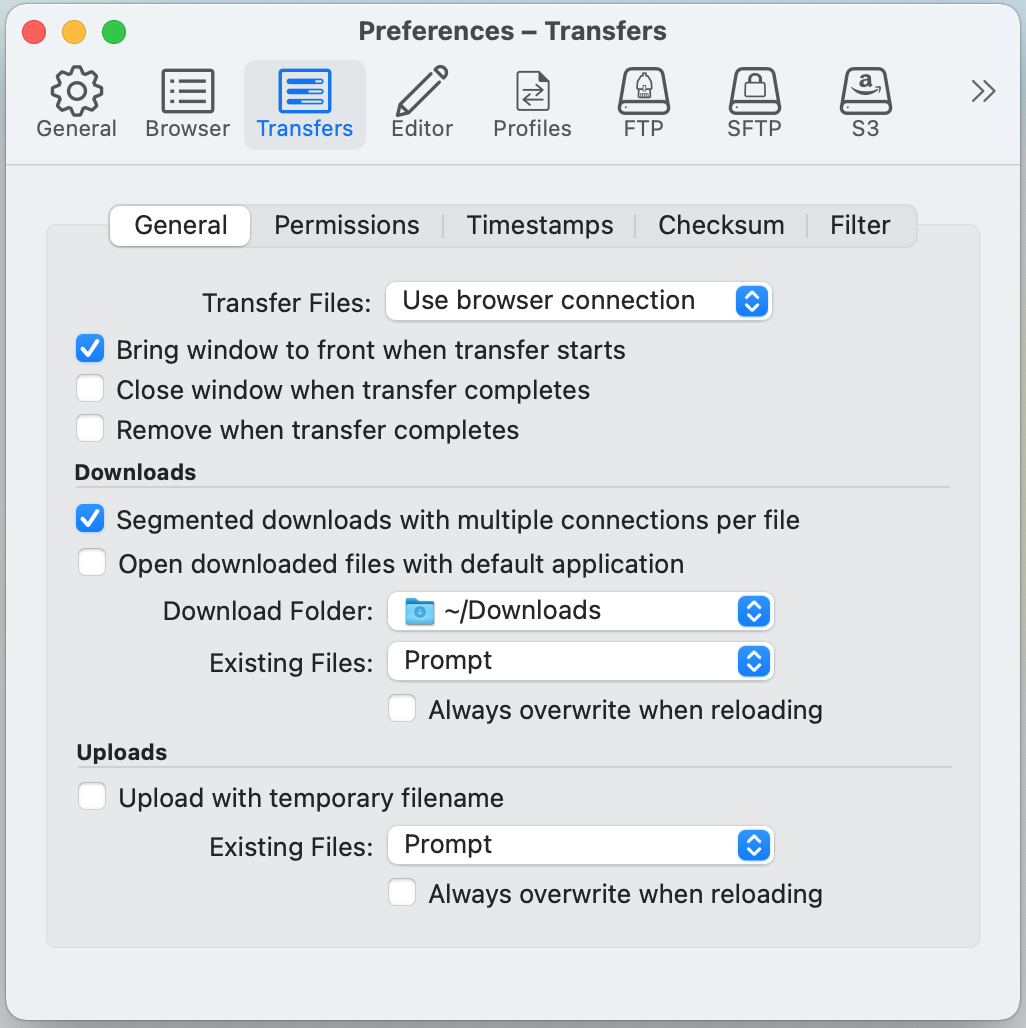
Under Preferences - Transfers, reuse the browser connection for file transfers. This will avoid the need to reenter your password for every file transfer:
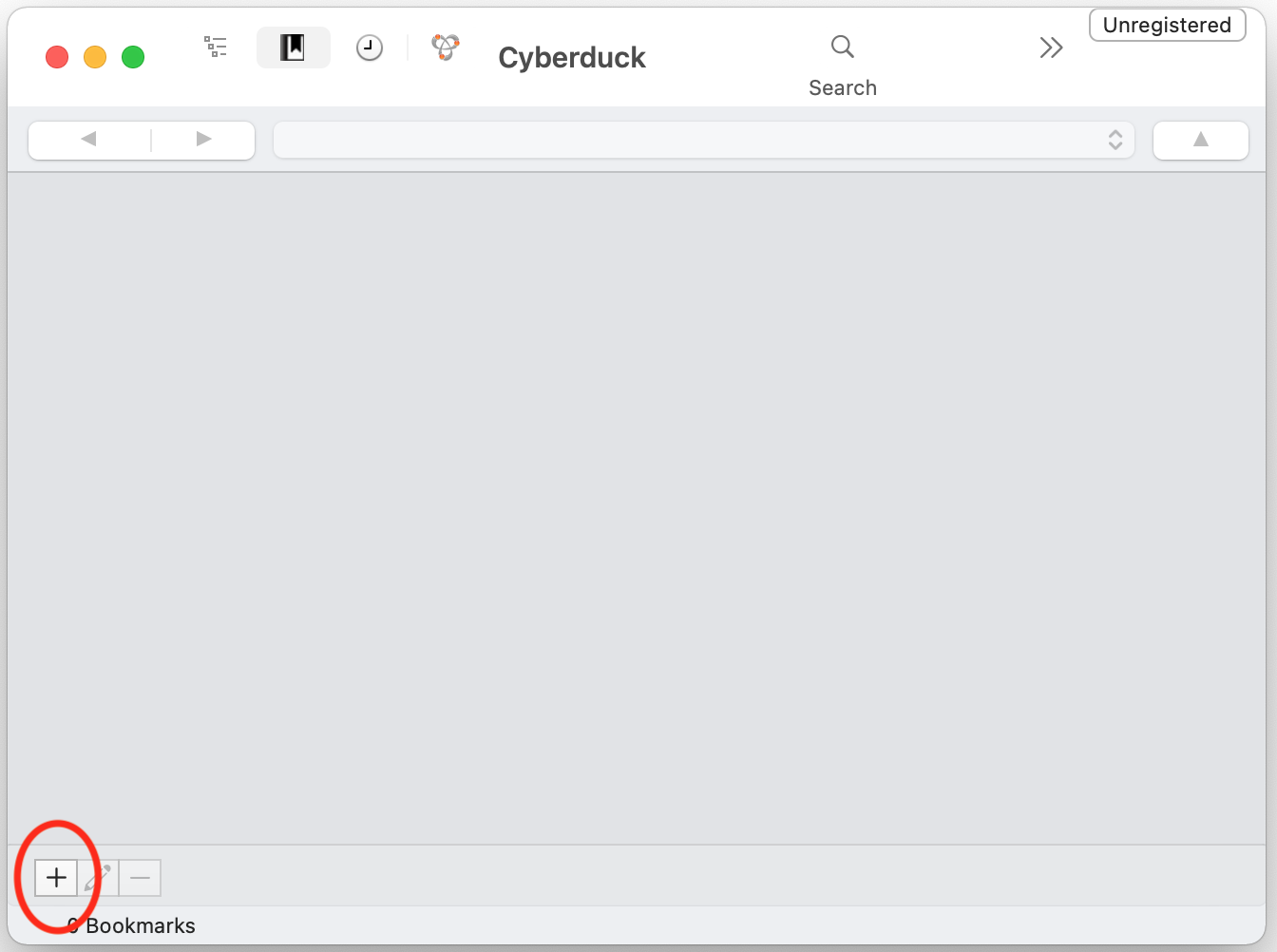
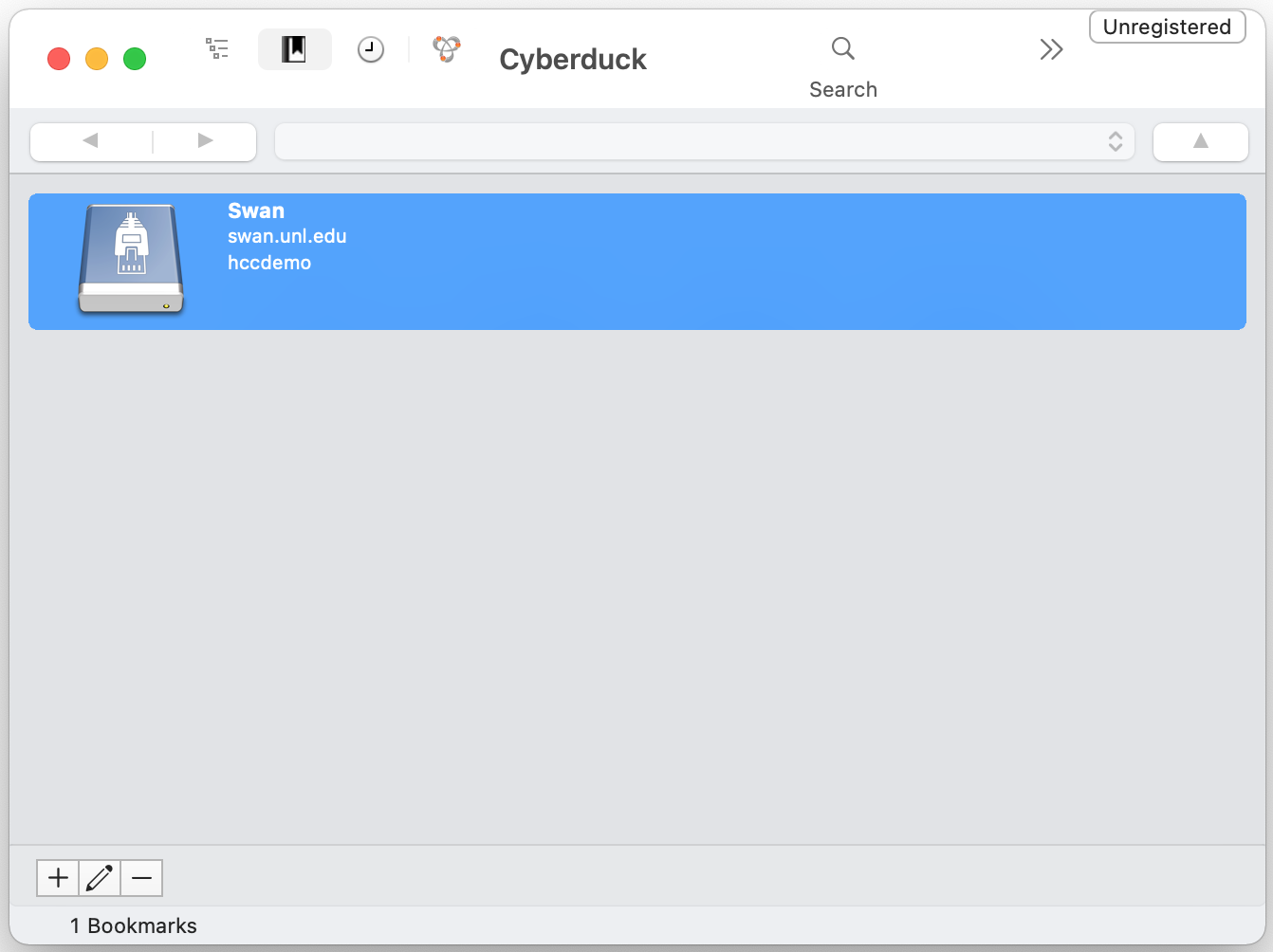
To add an HCC machine, in the bookmarks panel click the "+" icon:
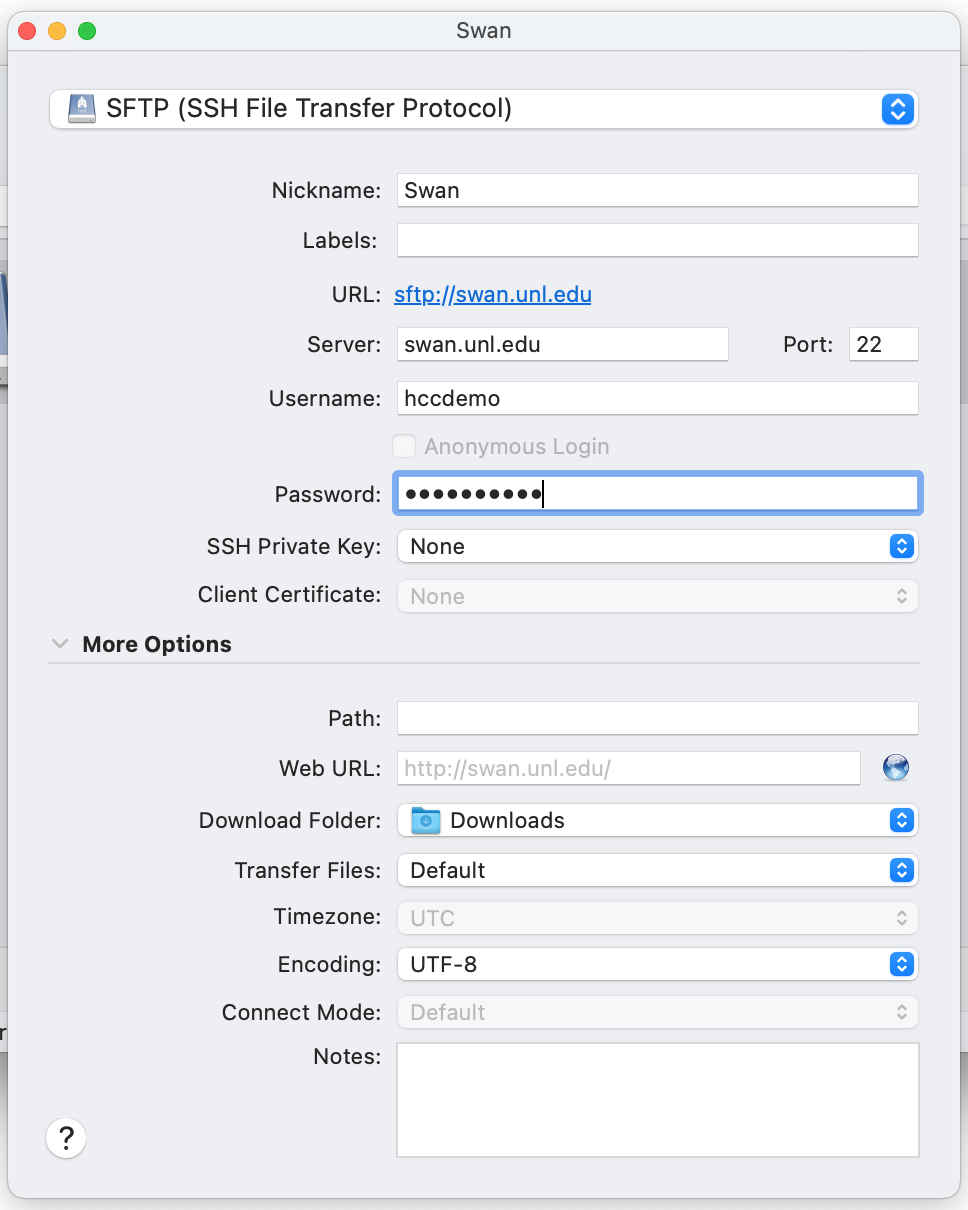
Ensure the type of connection is SFTP. Enter the hostname of the machine
you wish to connect to (swan.unl.edu) in the Server
field, and your HCC username and HCC password in the Username and Password fields.
The Nickname field is arbitrary, so enter whatever you prefer.
After you add the bookmark, double-click it to connect.
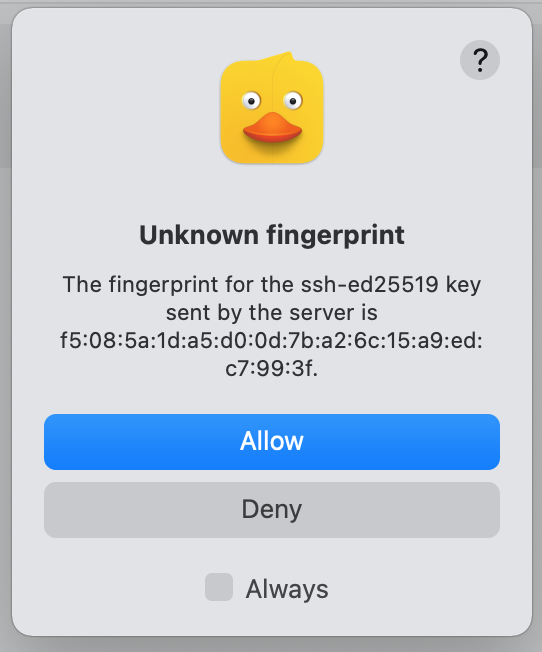
Click on Allow and check Always if you want to skip this prompt in future.
A Duo two-factor login dialogue will appear.
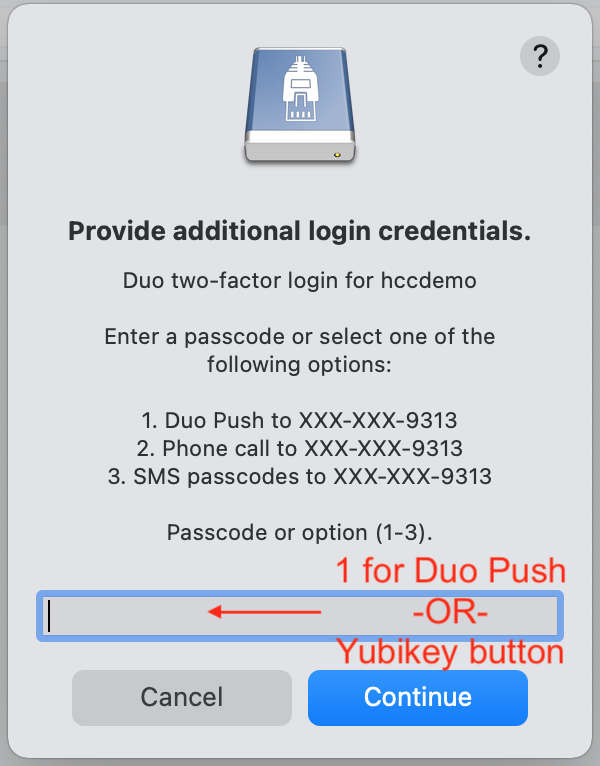
If you are using the Duo Mobile app, enter '1' to have a push notification send to your phone or tablet. If you are using a Yubikey, ensure the cursor is active in the Passcode or option field, and press the button on the Yubikey.
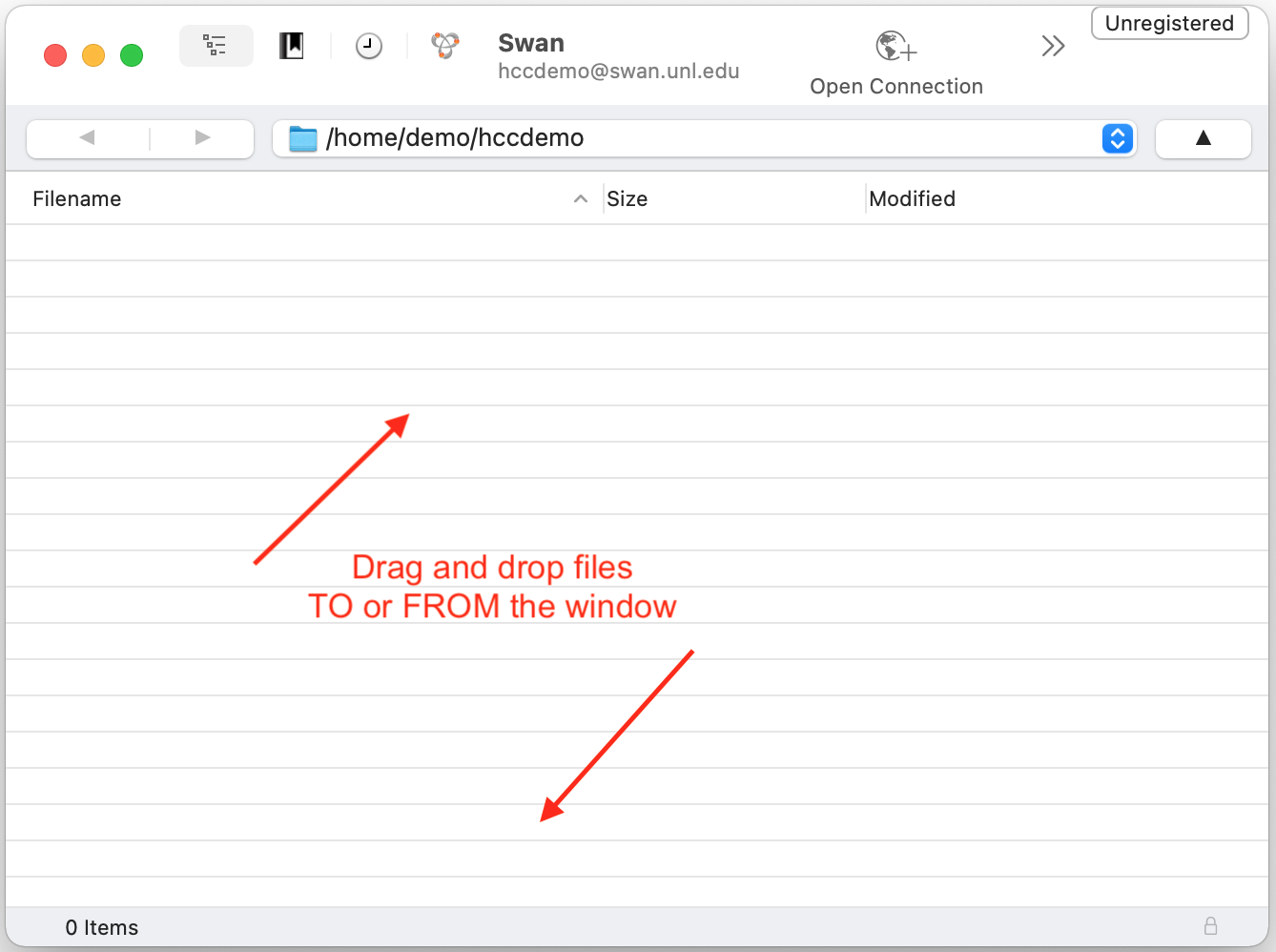
The login should complete and you can simply drag and drop files to or from the window.
Bug
If you run into issues with two-factor authentication, try the command below for a quick fix:
$ rm -rf ~/Library/Group\ Containers/G69SCX94XU.duck/Library/Application\ Support/duck/