Job Management and Submission with HCC OnDemand
Users can manage active jobs, as well as create, edit, and submit jobs from the OnDemand portal as follows.
To monitor active jobs, select "Jobs" -> "Active Jobs" from the OnDemand Dashboard menu bar.
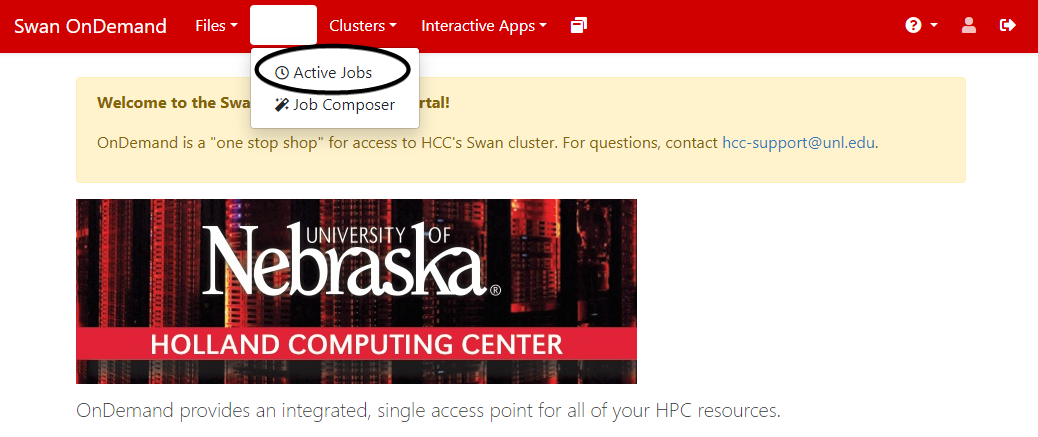
This will display all of your active jobs in a tabular format.
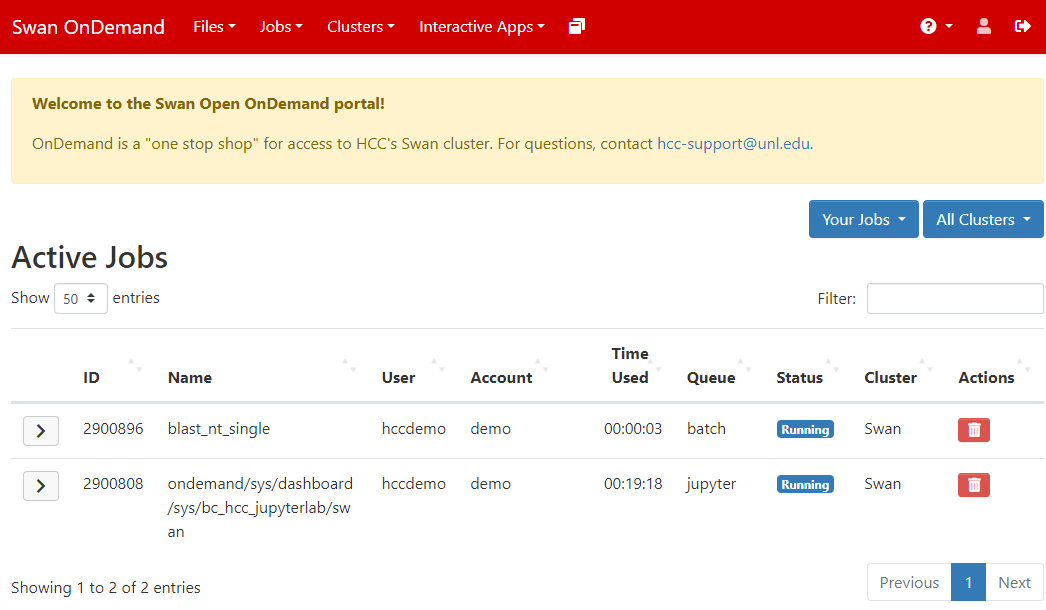
You can re-order the list by clicking on the up/down arrow icon located next to each column heading, or remove specific jobs by clicking on the trash can icon next to the job. A more detailed description of a job is displayed when you click on the ">" icon to the left of the JobID.
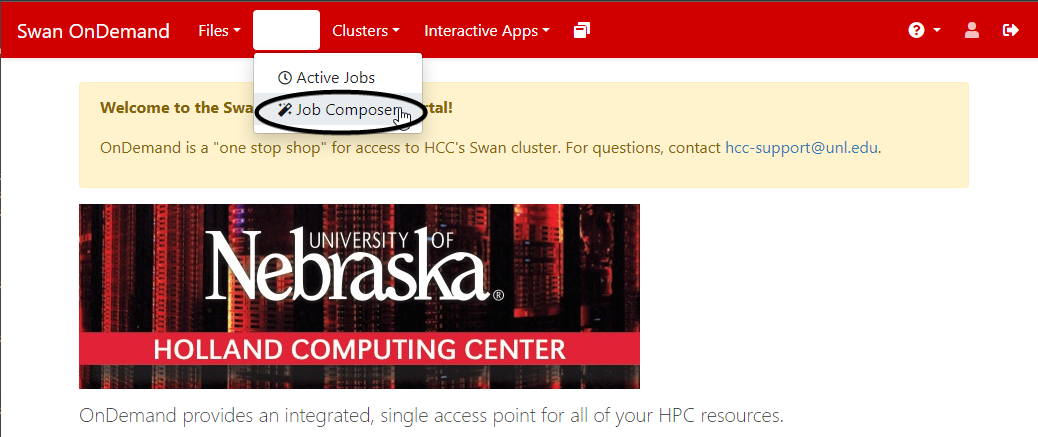
To create, edit, and submit new jobs, select "Jobs" -> "Job Composer" from the Dashboard menu bar.
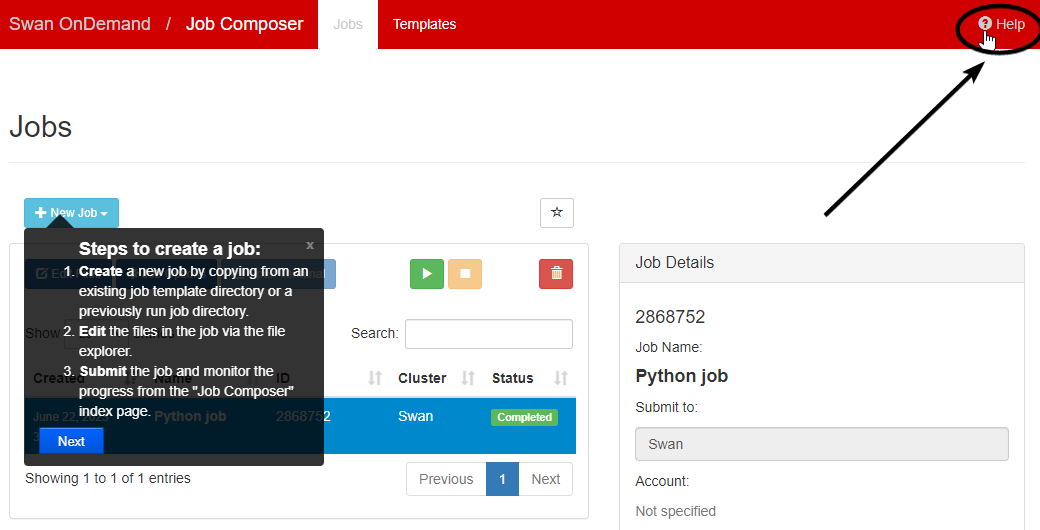
Click on the "?Help" button in the upper right hand corner of the window for a step-by-step introduction to the Job Composer features and how to use it.
To view a list of job templates for various applications, select the "Templates" tab at the top of the page. If you would like to start your job from one of these templates, select the template and then click "Create New Job".
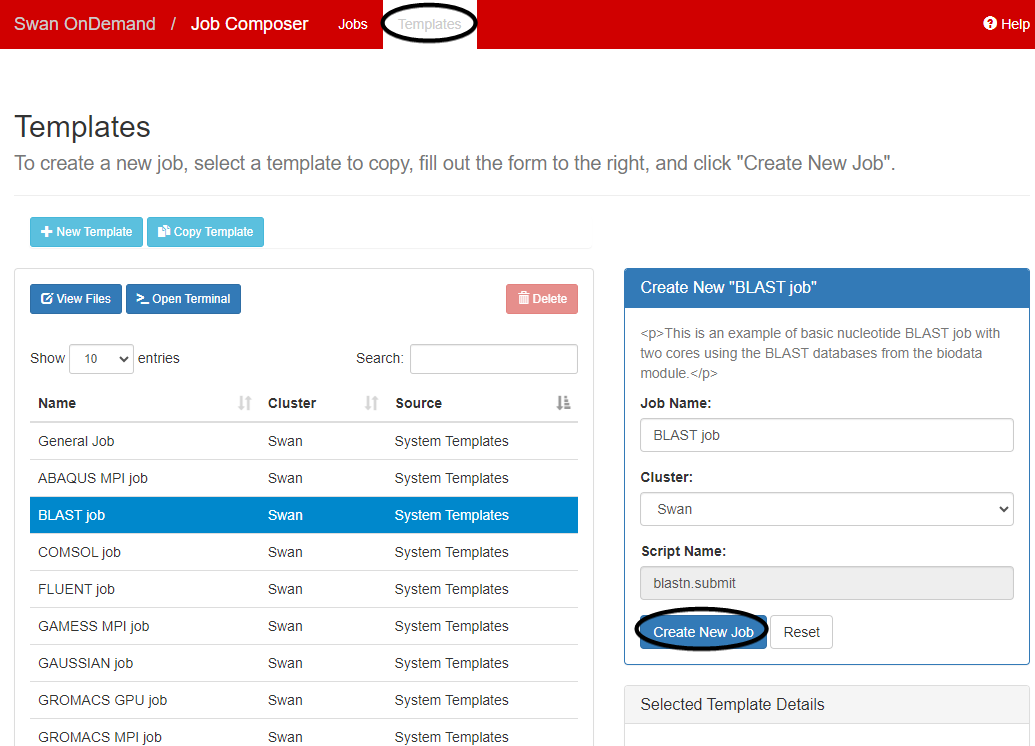
You will then be able to edit and submit the job from the Job Composer page.