Connecting with MobaXterm
Use of Duo two-factor authentication is required to access HCC resources.
Please see Setting up and Using Duo.
This quick start will help you configure your MobaXterm installation to work with HCC resources.
Access to HCC Supercomputers using MobaXterm
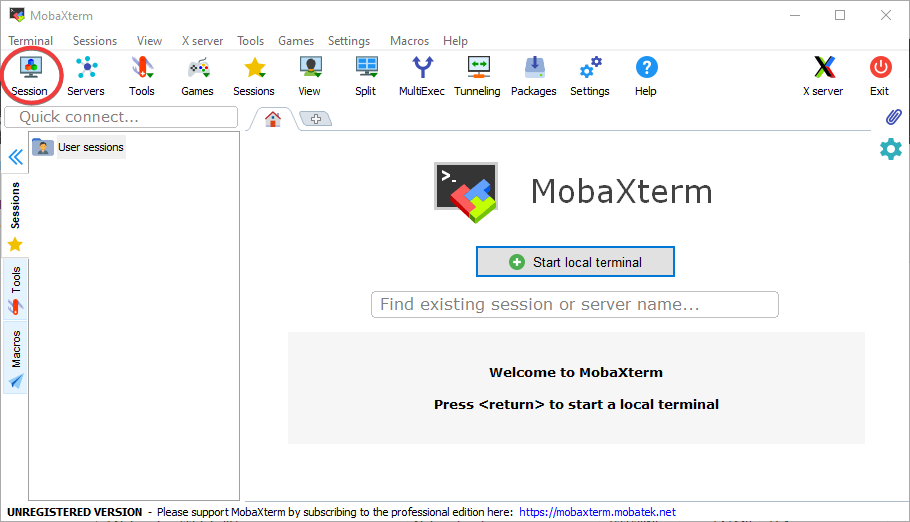
To connect to HCC resources using MobaXterm, open the application and select the Session Icon.
Select SSH as the session type. Enter the cluster you are connecting to, in the example, swan.unl.edu, is used. Check Specify username and enter your HCC username in the the box. Note that <username>
should be replaced by your HCC account username. If you do not have a
HCC account, please contact a HCC specialist
hcc-support@unl.edu
or go to https://hcc.unl.edu/newusers.
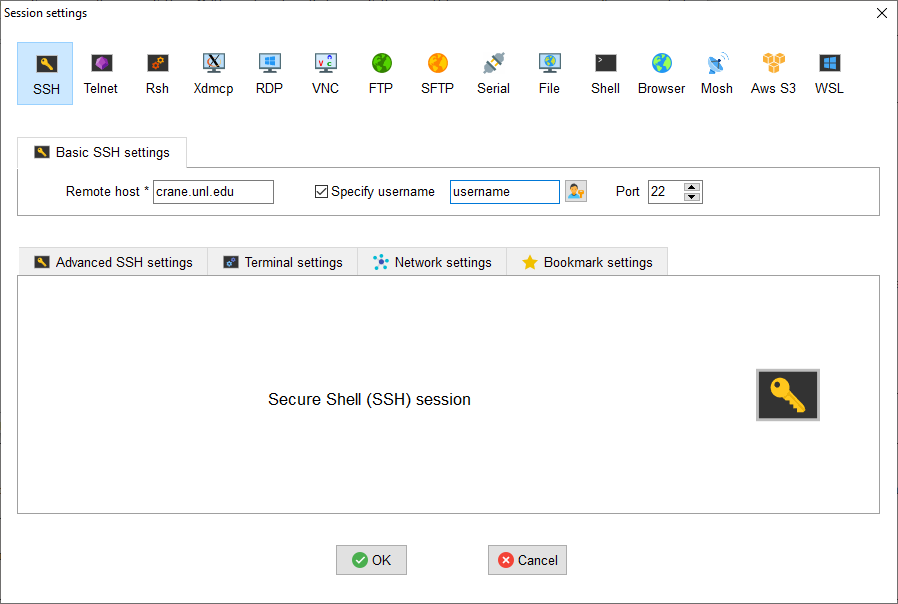
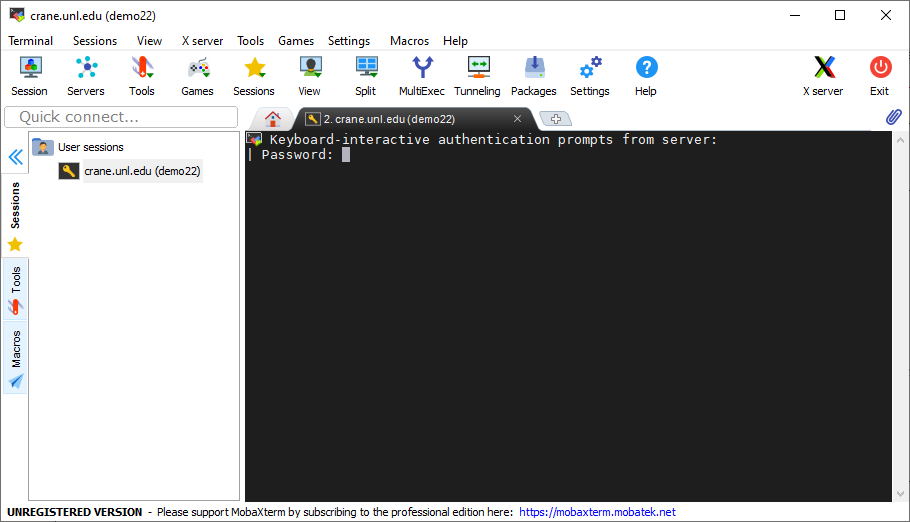
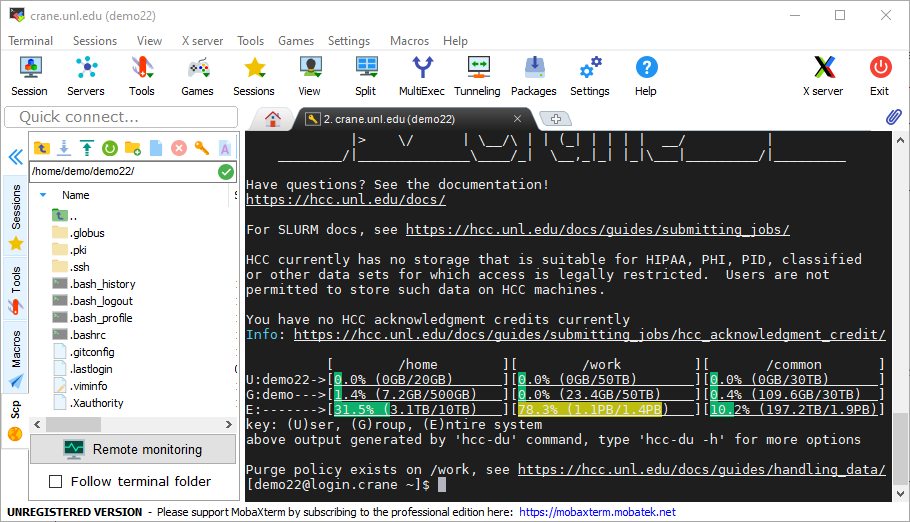
Select OK. You will be asked to enter your password and to authenticate with duo.
File Transferring with HCC Supercomputers
Using MobaXterm
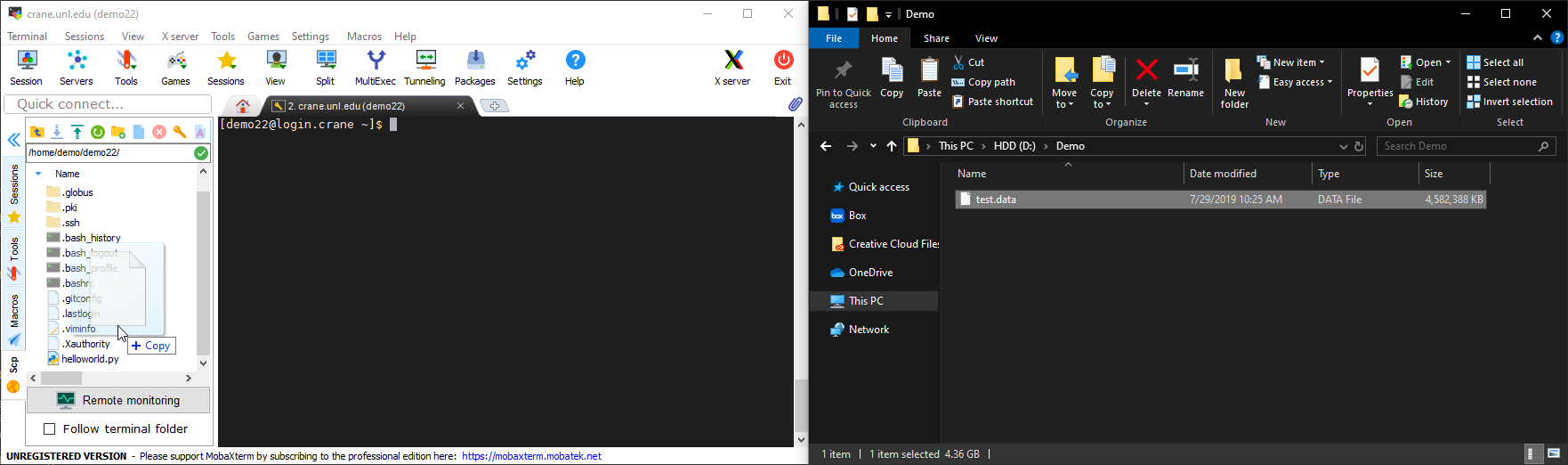
MobaXterm allows file transfering in a 'drag and drop' style, similar to WinSCP. MobaXterm also allows editing of files from a built in text editor or an editor of your choice already installed on your local machine.
Uploading from local to remote
The above example transfers a folder from a local directory of the your computer to the $HOME directory of the HCC
supercomputer, Swan. Note that you need to replace <group name>
and <username> with your HCC group name and username.
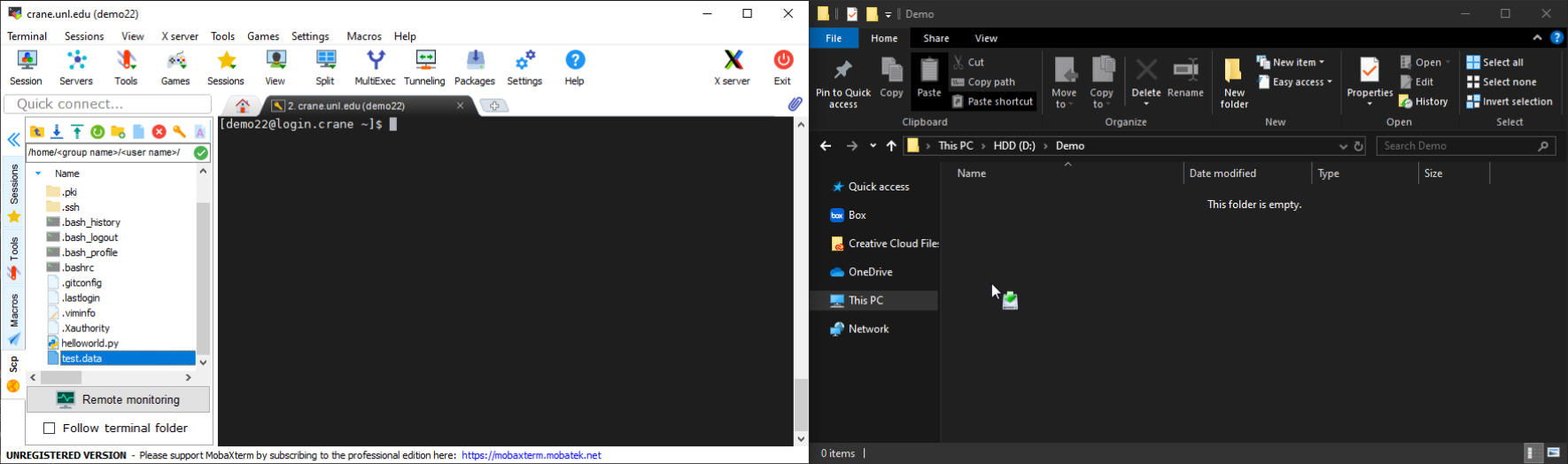
 Downloading from remote to local
The above example transfers a folder from the $HOME directory of
the HCC supercomputer, Swan, to a local directory on
your computer.
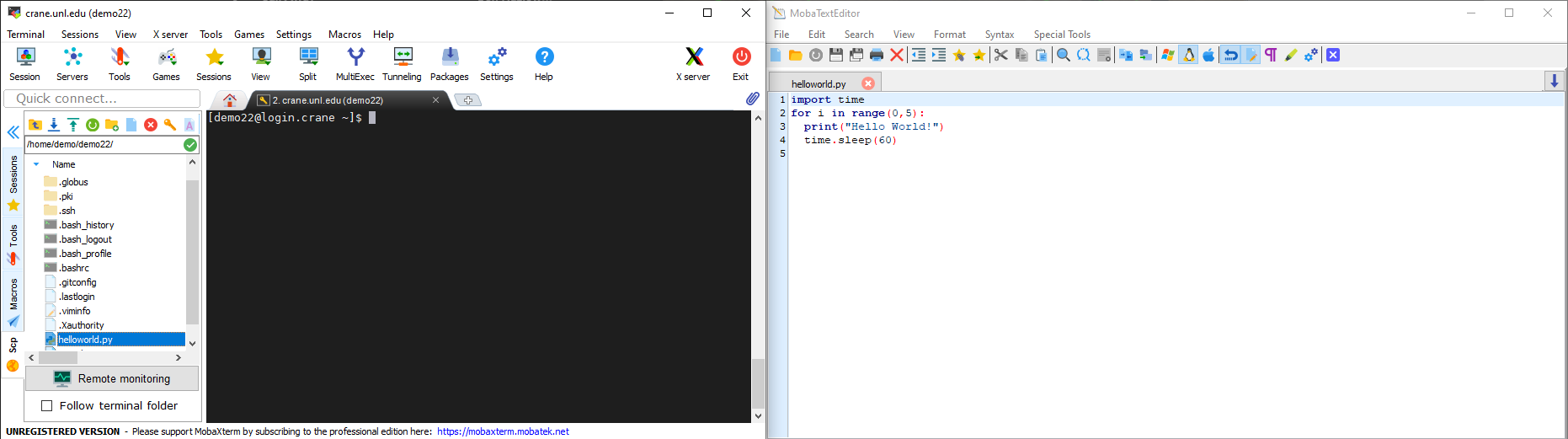
 Editing remote files
By double clicking on a file in the toolbar of the left, you are able to open the file in the editor from MobaXterm.
There is the option to use your own choice of editor already installed on your local machine. Under the General Tab in MobaXterm's settings, set the path of the editor's installation.
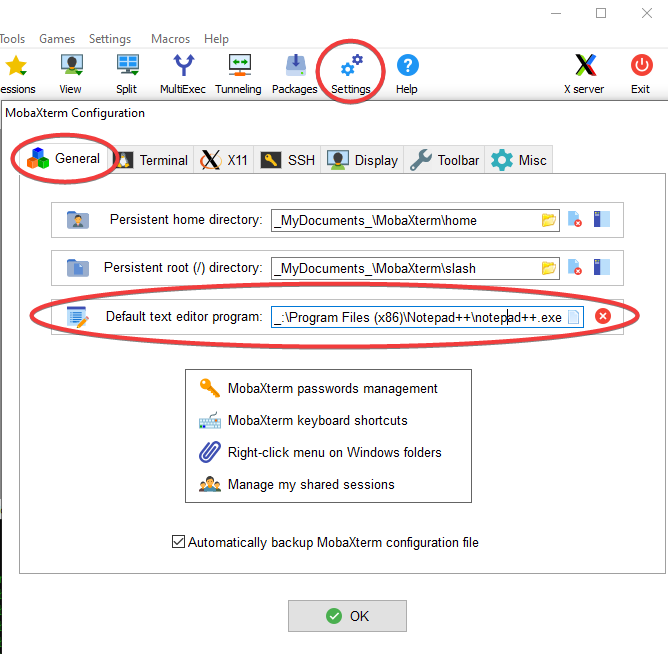
In the example above, Notepad--- is used as the choice editor. Once the editor is selected, it becomes the default editor for double clicking files and editing.
Using an SFTP Session
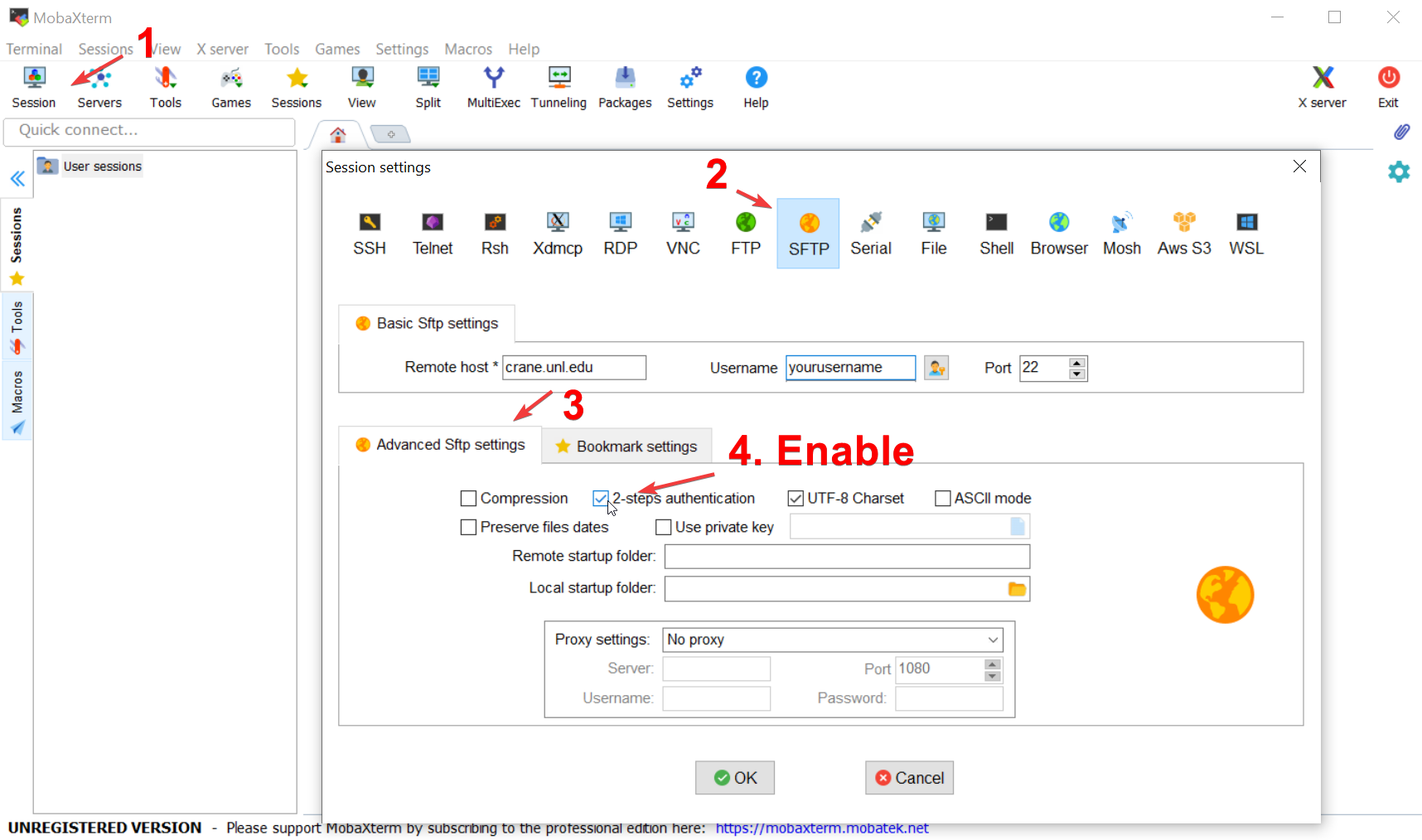
With HCC Clusters, MobaXterm requires an additional option to be marked to allow SFTP sessions to properly work. MobaXterm will still prompt you for DUO authentication, but will not properly work unless the 2-Steps Authentication checkbox is enabled in your session settings
To accomplish this, go to the Advanced Sftp Settings when creating a new SFTP session and select 2-Steps Authentication
Generating SSH Keys
With Anvil, you will need to generate SSH keys in order to access your instances. These are able to be generated in MobaXterm.
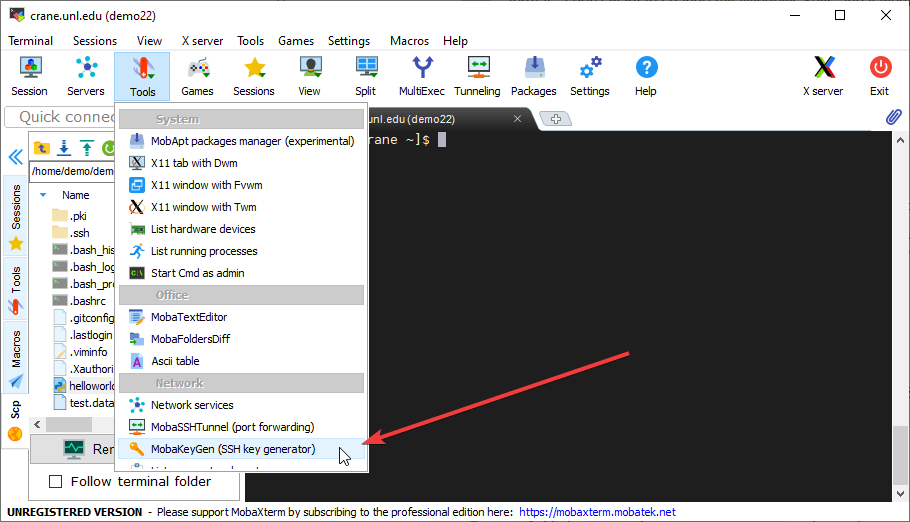
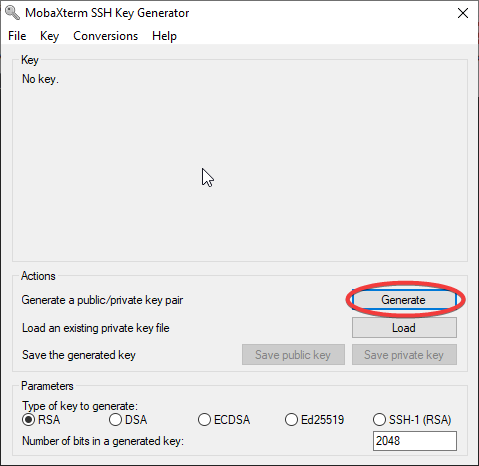
In the Generator window, click Generate and move your mouse around in the Key box randomly to generate the key.
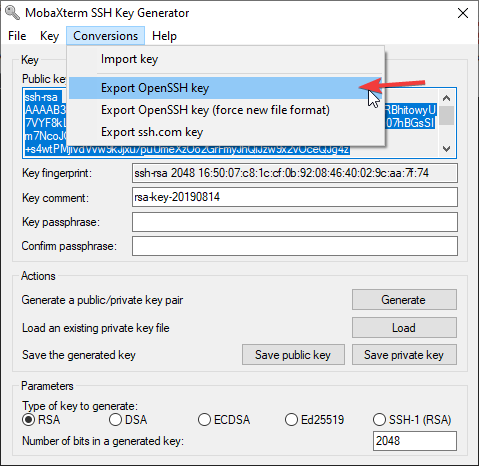
After the key is generated, go to the Conversions tab and select Export OpenSSH key and save it to your local machine.
 Treat the private key file the same as you would a password. Keep your private key in a secure location and do not share it with anyone.