Intro to Machine Learning and AI on HCC - October 2026 Logistics
Setup
Please make sure to complete the setup steps below.
-
Ensure your HCC Account is active.
-
Sign into Swan's Open OnDemand Portal: https://swan-ood.unl.edu
-
When you have signed into the Swan Open OnDemand Portal, please put up your Yellow Sticky Note or Green Checkmark.
If you have any issues logging in or accesing Swan, please visit our event troubleshooting guide here
Room Location:
Nebraska Hall 213
Nebraska hall has some rooms that share similar numbers.
The event is being held in Room 213 on the southeast side of the building. The room is down one floor from HCC's new office space (Nebraska Hall 310)
Warning
If you enter from the north or west side, you may run into Room W213 first.
It is recommended to enter from the southeast corner of the building. Room 213 is next to the stairs and elevator that are at the southeast entrance.
Map URL: https://maps.unl.edu/NH
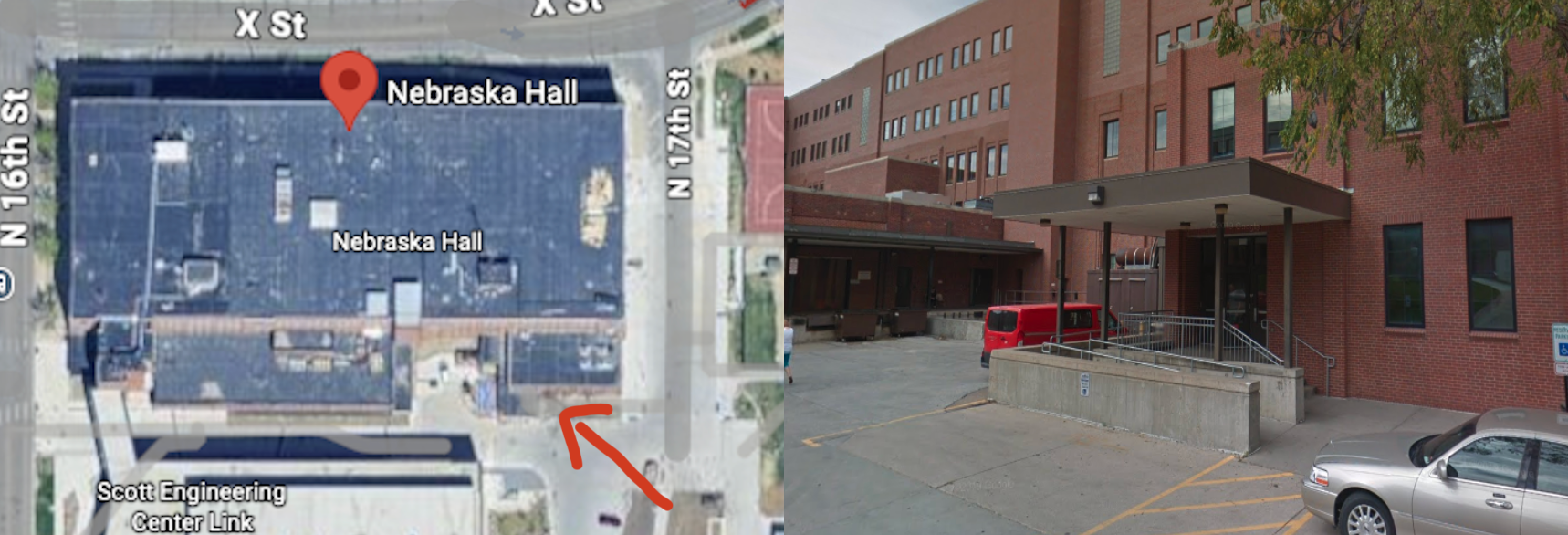
Parking Information - Click or Tap to reveal
Last Updated: September 29, 2026
If you are a UNL Student, Staff, or Faculty member, please use your designated parking.
Information below for UNO, UNMC, UNK, and other attendees
UNL Attendees without a parking permit
Visit https://maps.unl.edu/NH to see parking locations near Nebraska Hall. You can select "Visitor/Metered" parking to find metered parking on or near campus.
Alternatively you may purchase a pack of "Occasional Parking Permits", which allow you to park in "A" and "C" lots. More information at https://parking.unl.edu/parking/other-permits/#occasional-parking
UNO / UNK / UNMC with a permit at your primary campus
You will need to contact your campus's parking office atleast 1-2 business days in advance to set up reciprocal parking with UNL
Visit https://maps.unl.edu/NH to see parking locations near Nebraska Hall. You will need to select the appropriate parking lot type, either "A", "C", or both depending on your permit type.
Parking permits from UNK, UNO, UNMC and Nebraska Innovation Campus may be used on the UNL Campus for academic and business related activities; all other uses are prohibited unless authorized by Parking and Transit Services.
Source: https://parking.unl.edu/parking/other-permits/#reciprocal-parking
I don't have a permit within the University of Nebraska System
Visit https://maps.unl.edu/NH to see parking locations near Nebraska Hall. You can select "Visitor/Metered" parking to find metered parking on or near campus.
Check In
Check into the workshop for today
Check in is required to make sure the setup is complete!
If you do not see the namespace in the steps listed below or are unable to sign into Swan Open OnDemand, please raise your hand and put up your red sticky note. You will need to be able to sign into Swan and see the namespace below to follow along in the hands-on activities!
Go to https://swan-ood.unl.edu and sign in with your HCC account.
- If you were able to sign in and see the Message of the Day at the bottom, proceed to the step below.
- If you are not able to sign in, please put up your red sticky note.
Sign into nrp.ai. Go to the NRP Namespaces page. Is gp-engine-tutorial-jobs visible?
- If you are able to see the
gp-engine-tutorial-jobs, then the setup is complete for the workshop today. Please put up your yellow sticky note. - If you are not able to see the
gp-engine-tutorial-jobs, please put up your red sticky note. You may need to complete this form to be added to the namespace.
General Information and Links
Sticky Notes and Reactions
Throughout the workshop, we will use sticky notes to indicate status. These help instructors and helpers in the workshop assist with various issues and provide formative feedback during the workshops.
Please make sure the sticky note is visibly on both the front and back of your laptop
- Yellow Sticky Note: All good to go
- Red Sticky Note: I need help or I am not ready to continue
Workshop Recommendations
To make the most of this workshop, we strongly encourage active participation throughout the entire session, including participating in the hands-on exercises and asking questions throughout the workshop.
If you are stuck or not sure on something at any point of the workshop, please let us know and we would be happy to help.
Participation can be accomplished by using the sticky notes or raising hands.
Links
Workshop Website: https://hcc.unl.edu/introduction-artificial-intelligence-and-machine-learning
Feedback Form: https://forms.cloud.microsoft/r/dfaDb4eJnh
Introduction to Bash
Command History Link: https://hcc.unl.edu/swc-history/20261001.html
Slides Link:
Download Materials
- Open a terminal in Open OnDemand (OOD). This is done by opening the "Clusters" menu at the top of the screen and selecting "Swan Shell Access"
- Change to your $WORK directory and run
git clone https://github.com/unlhcc/hcc-ai-ml-workshop.git. Verify that the data was downloaded using thelscommand.
Setup Jupyter
Return the the OOD main page and start a "Jupyter Lab" session from the "Interactive Apps" menu using the settings in the section below.
Open OnDemand Settings
Open OnDemand WebForm Settings
| Parameter | Value |
|---|---|
| Jupyter Lab version | 4.0 |
| Working Directory | /work/groupname/username |
| Number of cores | 8 |
| Running time in hours | 3 |
| Requested RAM in GBs | 32 |
| Partition selection | gpu |
| Reservation | Located on the back of your name tag |
| GRES | gpu |
| Job Constraints | ---Leave BLANK--- |
Resource Reservation for GPUs: Located on back of nametags
JupyterLab Settings:
| Parameter | Value |
|---|---|
| INSIDE JUPYTER LAB: Kernel Name | hcc-ai-ml-workshop |
- Navigate to the "hcc-ai-ml-workshop" directory on the left hand side of the screen.
- Open the "prepare_datasets.ipynb" notebook and run all cells
- When all cells have finished execution without error, put up your YELLOW sticky note.
Git Lesson Link: https://swcarpentry.github.io/git-novice/
Open these at the start:
When we move to the hands-on activities
- Sign into the GP-ENGINE JupyterHub Portal: https://gp-engine.nrp-nautilus.io/
- Select
Stack Datascience + K8sand clickStart. This process will take a few minutes. - Put up your yellow sticky note when you see it is complete.
??? tip "Want to learn how to setup your own instance for a class or lab?" Check out the "Deploying JupyterHub" documentation: NRP Jupyter Hub Docs
Cloning the repository:
git clone https://github.com/MUAMLL/gp-engine-tutorials.git
Troubleshooting
PyTorch is not loading correctly in Tensorboard
This can be caused by running an old version of Tensorboard. Cancel the existing tensorboard job and resubmit with the latest version.
sbatch: error: Batch job submission failed: Requested node configuration is not available
For this workshop, make sure you are using the gpu partition with the reservation and the normal QoS.