File Transfer with FileZilla
Using FileZilla
FileZilla is a free, open-source file transfer client used to move files between your local computer and a remote server. You can download FileZilla Client at FileZilla
Note
Note that the screenshots given here use FileZilla Client 3.70.4 for Windows. Different versions may have different prompts.
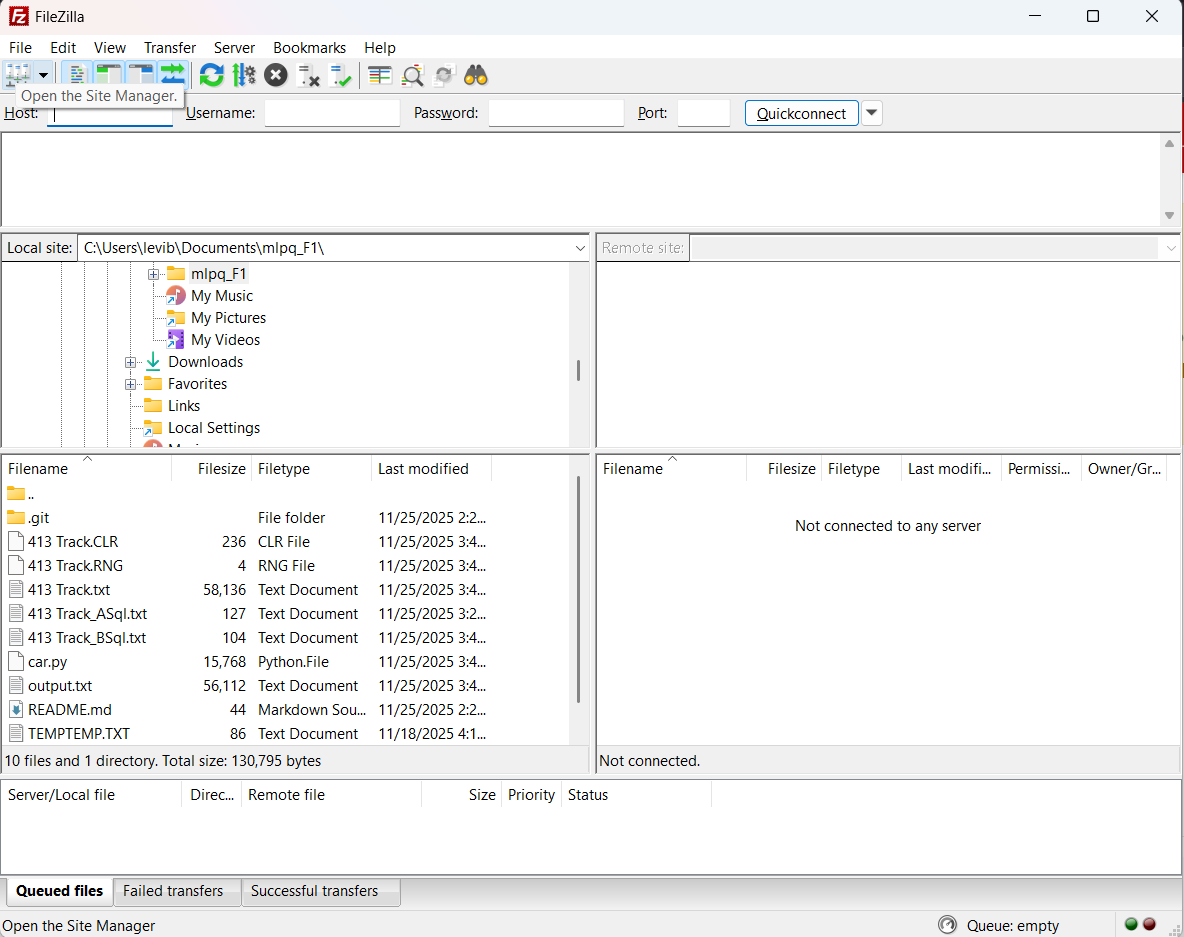
Upon first opening FileZilla, the Local site (left) side will show the files on your local computer, while the Remote site (right) side will be blank, as the remote is not yet connected. Click the "Open the Site Manager" button in the top left corner, as shown in the image below.
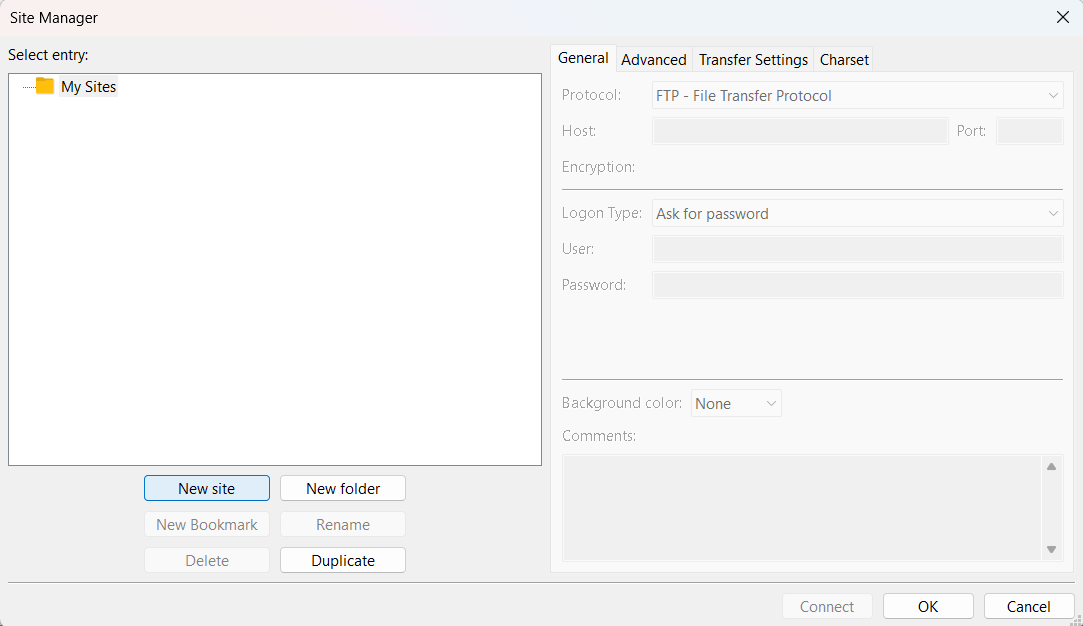
This will open the Site Manager window, which will allow for a more detailed connection configuration. Click the "New site" button to start a new remote connection, as shown in the image below.
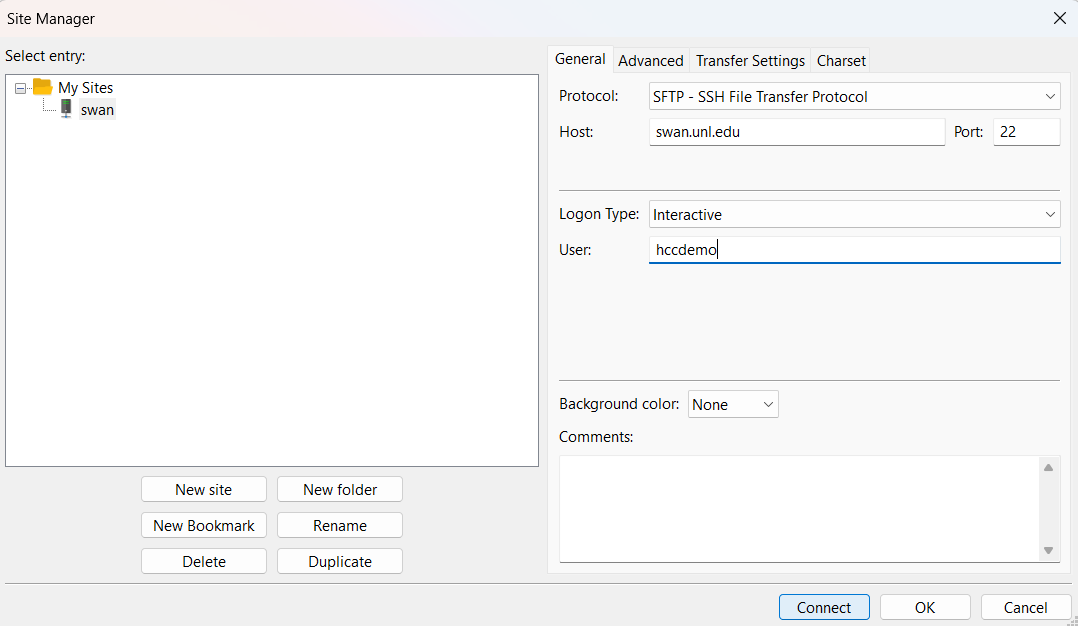
Once the new connection is created, you can choose to rename it. In the image below, the name "swan" has been chosen. Now, we can configure this new connection. Choose SFTP as the Protocol, swan.unl.edu as the host, Interactive as the Logon Type, and your username as the user (the username and password should be the same as for your login to HCC Open OnDemand). Click the Connect button once completed.
When first connecting to swan, a warning message will pop up to ask if you trust the host. PLEASE make sure the host is correct (swan.unl.edu) and then choose OK.
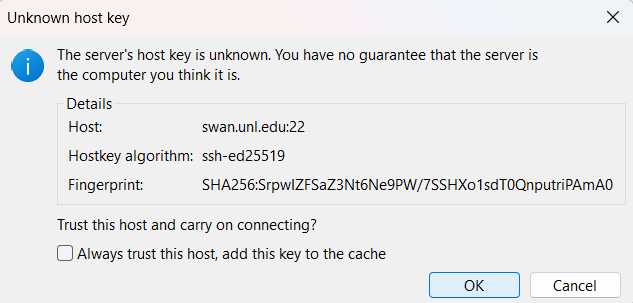
Now, a screen will ask you to input your password for swan.
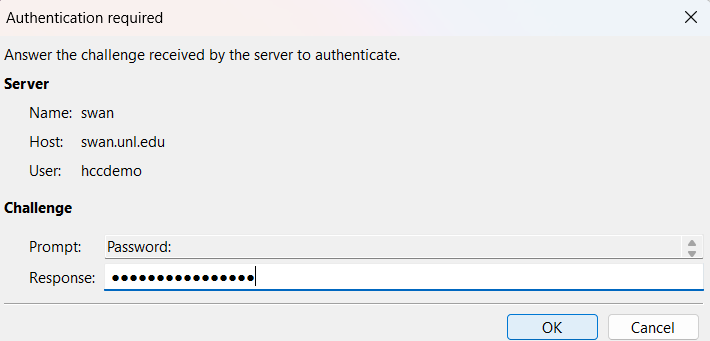
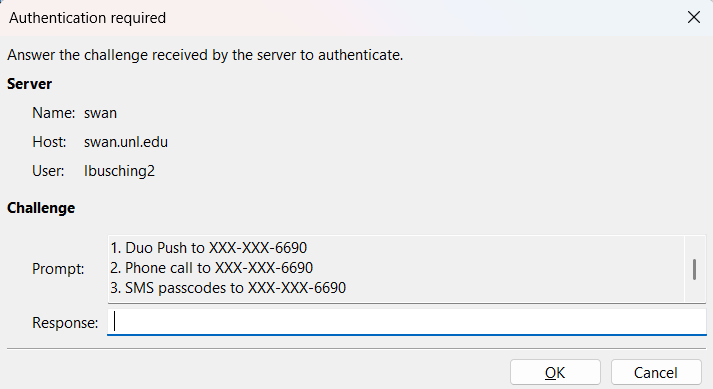
Next, a screen will appear asking for Duo two-factor authentification. You can scroll on the Prompt to review your options. You can either input 1, 2, or 3 to send a Duo push to your phone, or enter a Duo passcode. The image below shows the options. If you would rather try the Duo passcode option, the instructions are below.
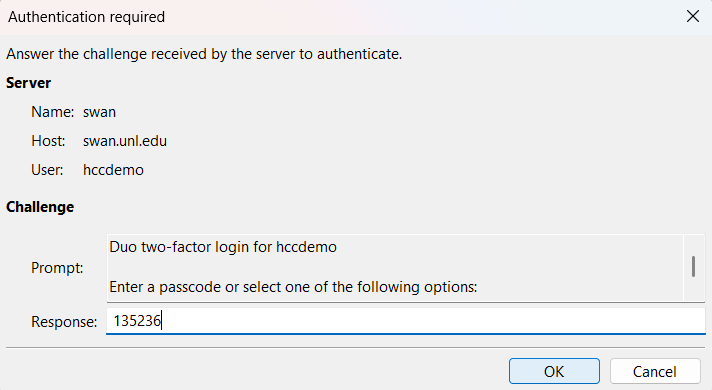
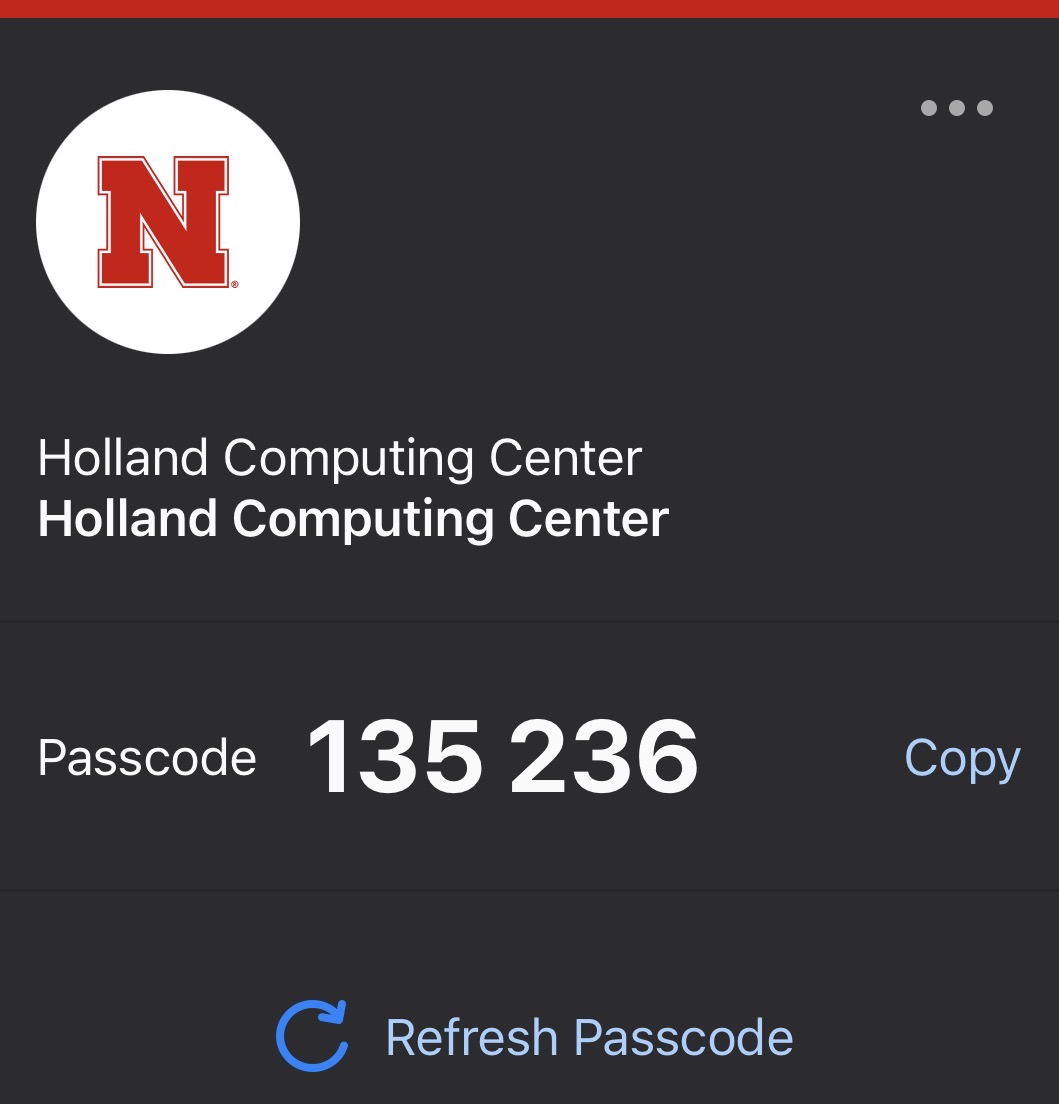
Instructions for Duo Passcode Option: In the Duo app, clicking on the Holland Computing Center Duo banner will expand to give a passcode. Copy this passcode into the Response option of the FileZilla prompt. Click OK when finished.
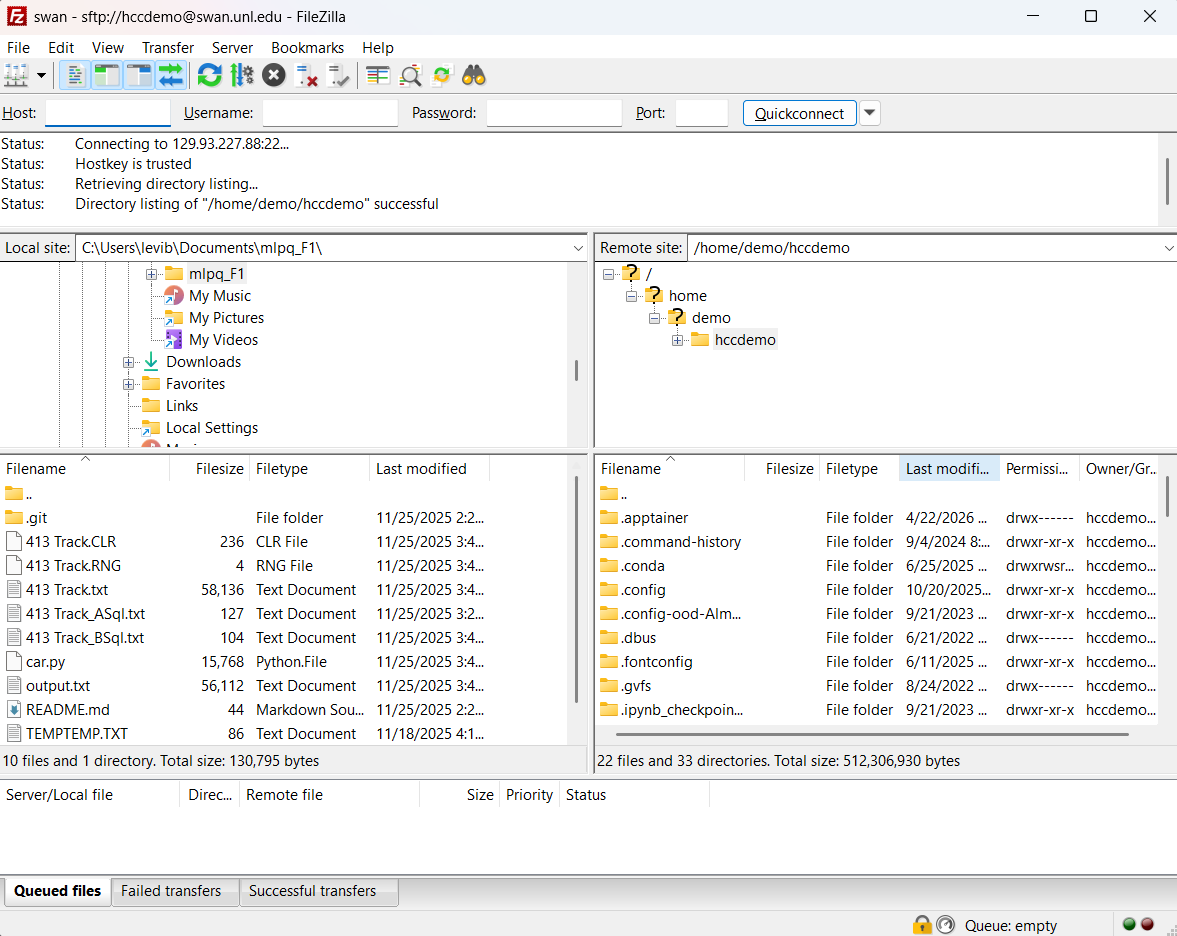
You are now connected to swan. Now, the Remote site (right) side will show files in the remote workspace. You can move files and folders between your local and remote directories by selected and dragging them to the desired side.