PEP2026 - March 7-8, 2026
How to share this page
For easier sharing, the short link for this page is: https://go.unl.edu/hcc_pep2026_info_page

Before the workshop and as you arrive:
Summary of steps
- ✅ Can sign into Swan OOD
- ✅ Able to launch GRIME-AI App
Make sure you can sign into Swan
Warning
Please make sure you can sign into Swan using the steps below!
If you can complete the steps below, you are ready to continue.
Please make sure to complete the setup steps below.
-
Ensure your HCC Account is active.
-
Sign into Swan's Open OnDemand Portal: https://swan-ood.unl.edu
-
When you have signed into the Swan Open OnDemand Portal, ensure the temporary username you received is listed in the "Logged in as" section of the upper right corner.
Access the workshop Swan reservation
Accessing reserved Swan resources
Resources on Swan have been reserved for the period of the workshop. A shared pool of GPU resources consisting of 10 GPU nodes with 4 x NVIDIA L40S each cards have been reserved.
GPU resources
Partition Selection
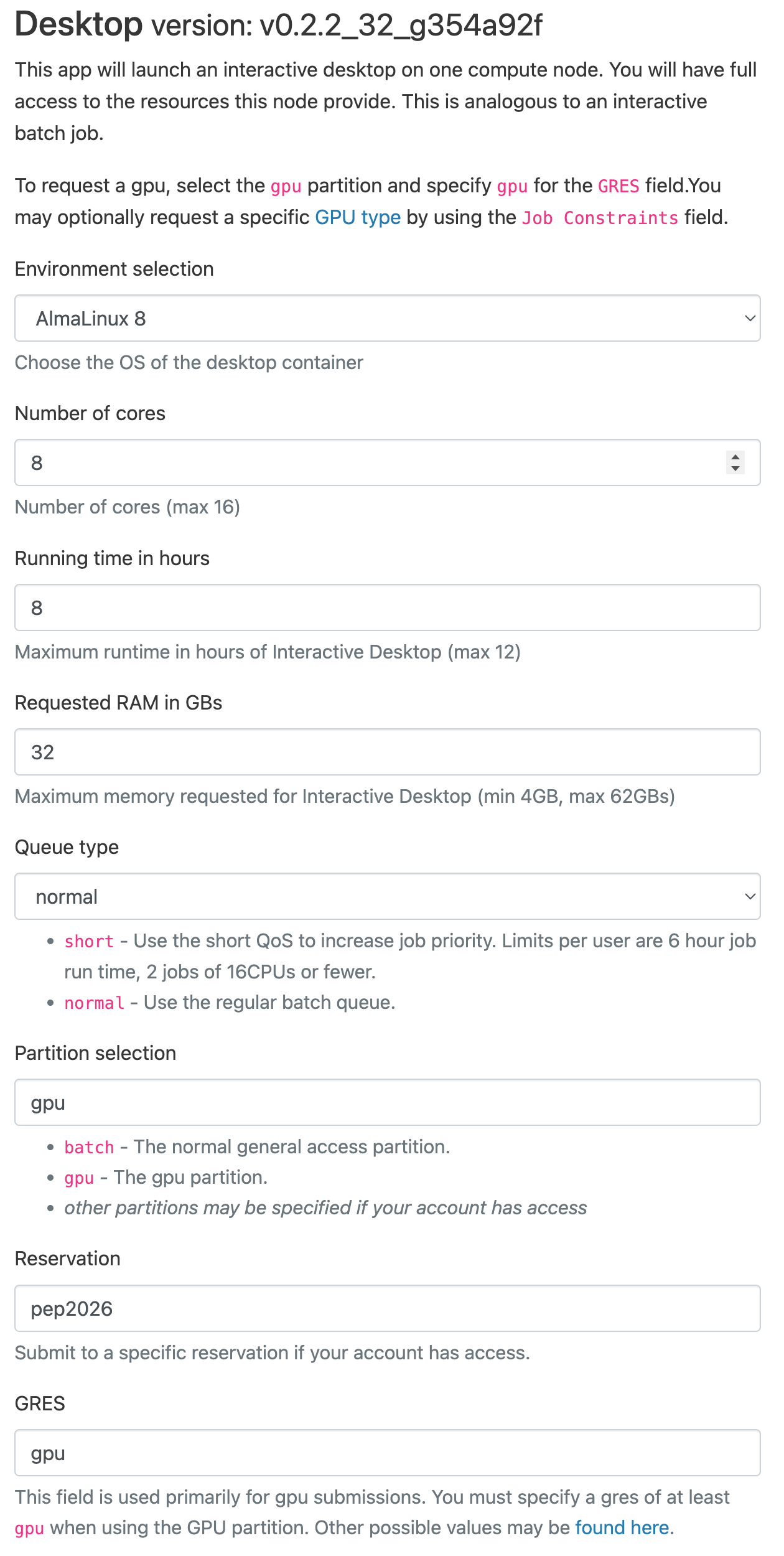
To access the reserved resources, you will need to ensure that your partition is set as gpu.
QoS
If you are getting an error when submitting an Interactive Desktop session, please make sure that your QoS Type is set to normal.
To access the reserved GPU resources during the workshop, use the Reservation field with the reservation name pep2026.
Please note that the pep2026 reservation is only valid during the workshop. If you are trying GRIME-AI
ahead of time, leave the Reservation field blank.
Access from Open OnDemand
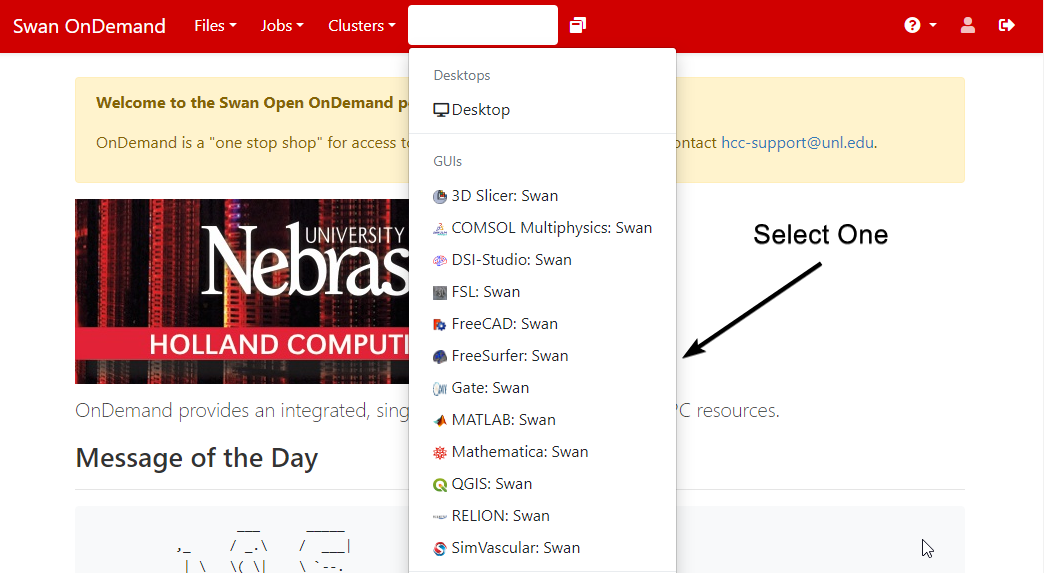
To access GRIME-AI, start a Desktop session under Interactive Apps.
Use the following values in the launch form:
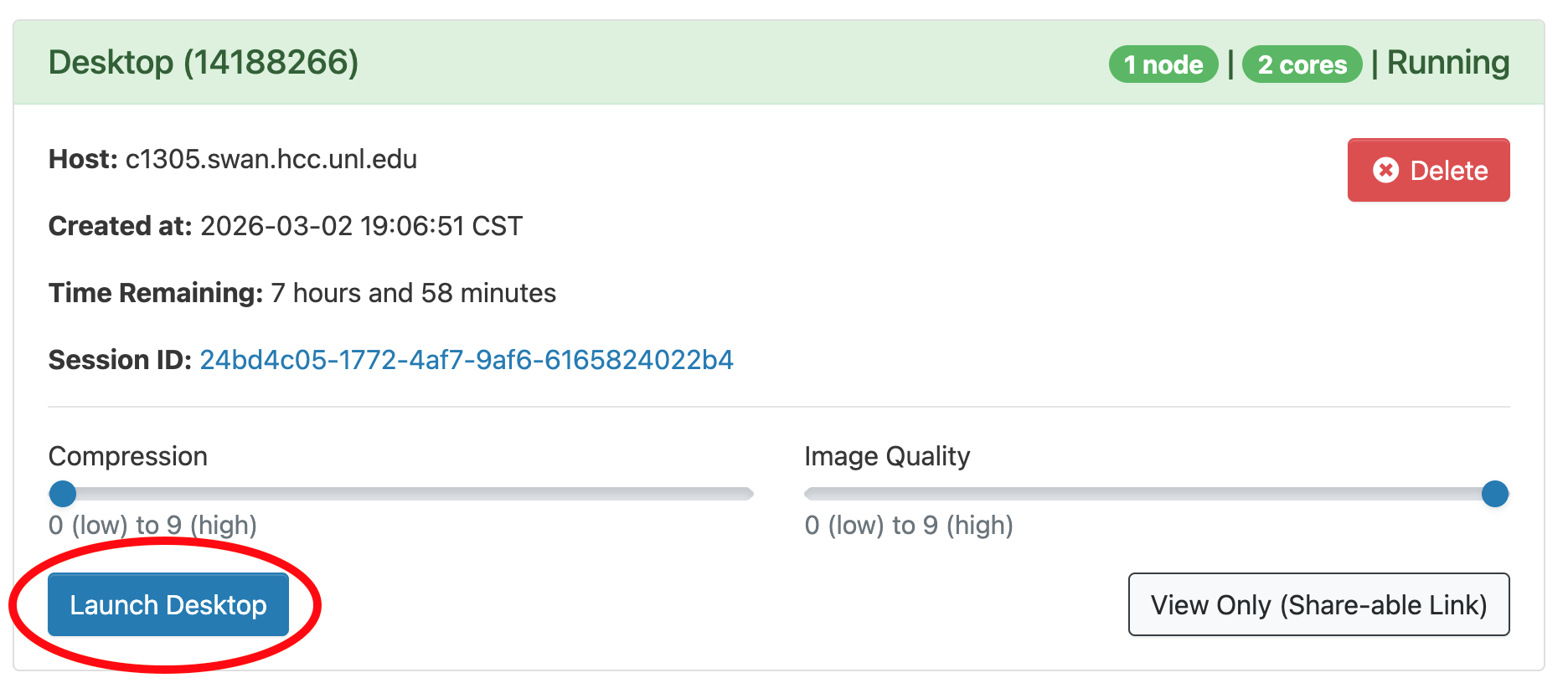
Once the Desktop session starts, a blue Launch Desktop button will appear. Before clicking it,
you may wish to decrease the Compression slider and increase the Image Quality one. Then
click the button to open a new browser tab with the desktop.
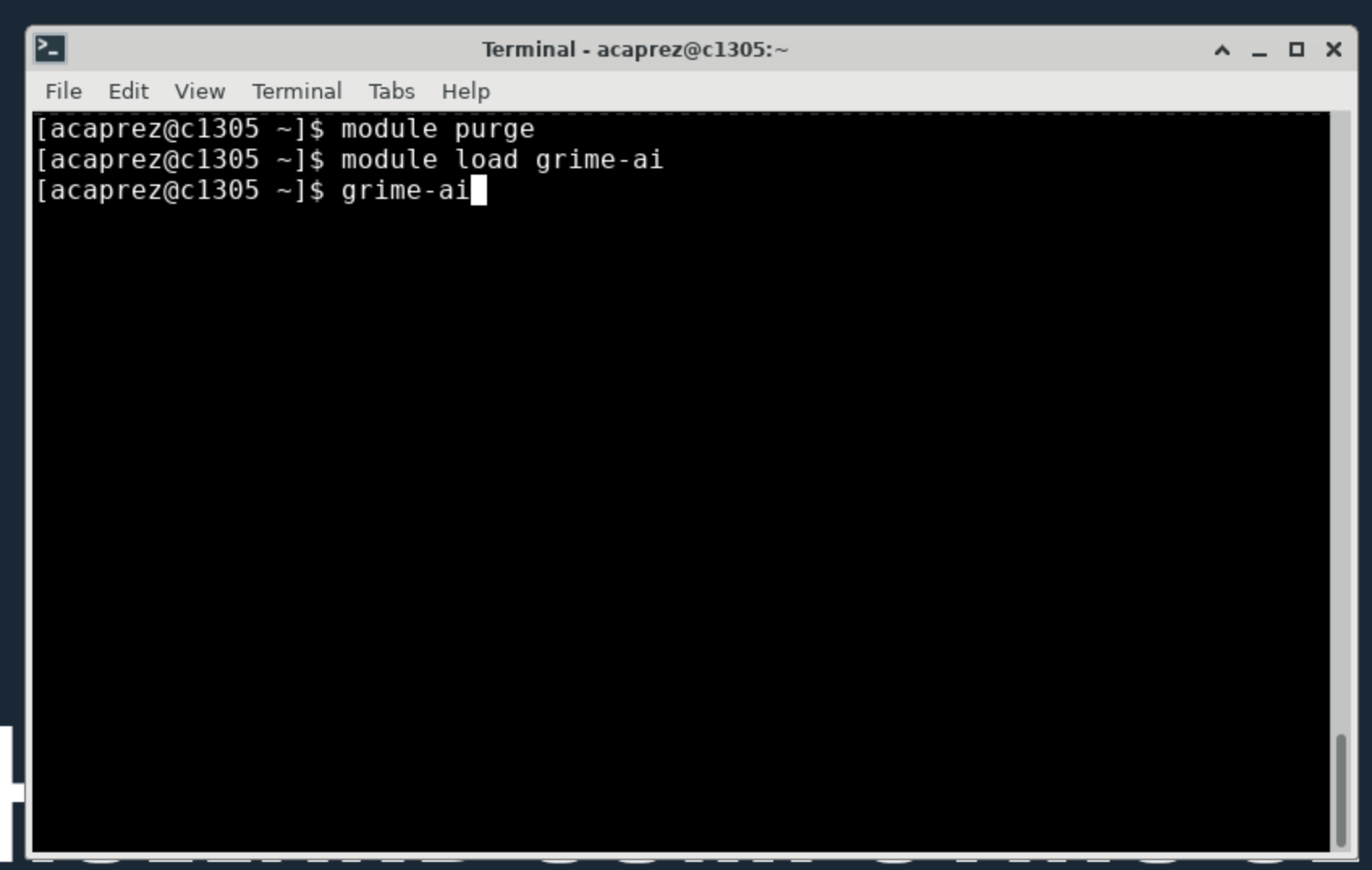
To start GRIME-AI, open the Terminal Emulator app, second from the left along the bottom icon bar.

In the Terminal app, run the following commands, pressing Enter after each line:
module purge
module load grime-ai
grime-ai
After the last command, text will start to scroll to the screen indicating GRIME-AI is starting. Please note it may take a couple minutes to fully start. After GRIME-AI has started completely, the main interface window will be visible:
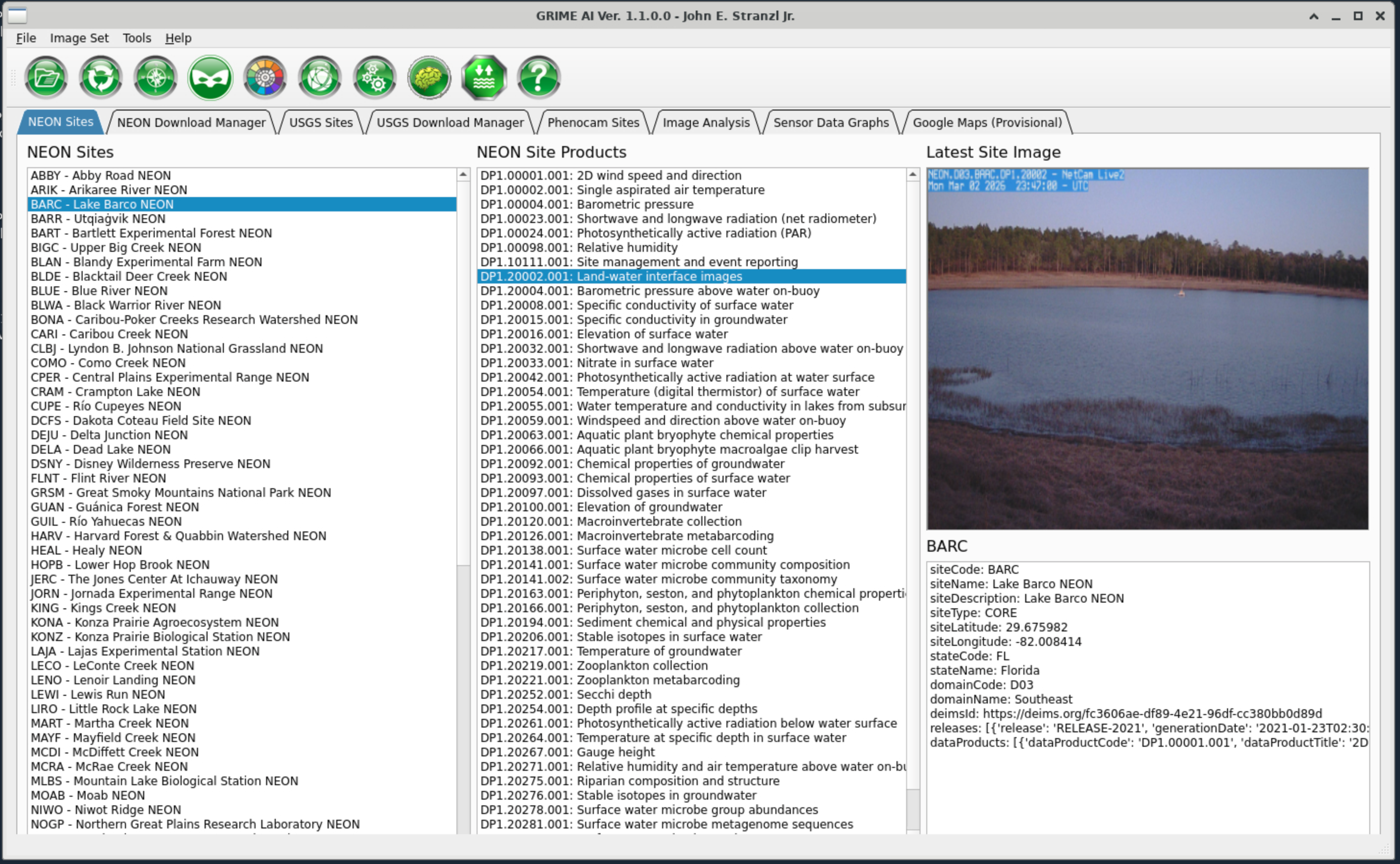
You may now begin using GRIME-AI.
Prestaged dataset
A copy of the workshop dataset has been prestaged into your account. This may be found under
~/Documents/GRIME-AI/SAMPLE_DATASETS.
Useful Information and Links
Swan Supercomputer Login: https://swan-ood.unl.edu
Cheatsheets UPDATE ME - Links mostly
- HCC and Slurm Cheatsheets: Sharepoint link
- Presentation Template: Link
- Bash: https://cheatography.com/davechild/cheat-sheets/linux-command-line/
- Git: https://education.github.com/git-cheat-sheet-education.pdf
- Anaconda: https://docs.conda.io/projects/conda/en/4.6.0/_downloads/52a95608c49671267e40c689e0bc00ca/conda-cheatsheet.pdf
- Python: https://indico.cern.ch/event/865287/attachments/1971788/3280306/beginners_python_cheat_sheet_pcc_all.pdf
Submitting Jobs
What is a supercomputer?
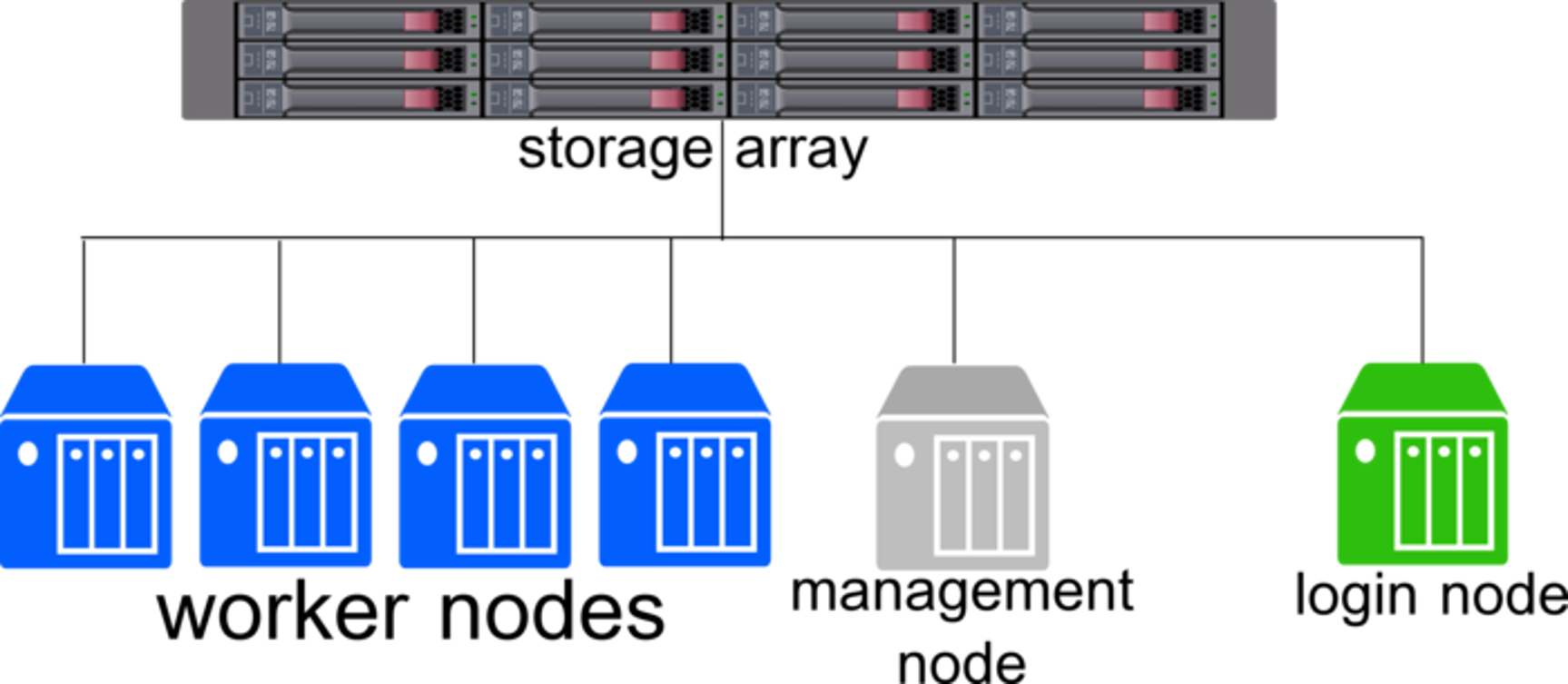
A supercomputer or cluster, such as Swan, comprises of many components that can be broken down into 4 major categories:
- Login Node: Where you log in to interact with the cluster. Meant for small tasks like writing files and submiting workflows.
- Head/Management Node: Manages the accounting, authentication, and management of workflows and nodes in the cluster.
- Worker Nodes: The actual powerhouse behind any cluster and run the workflows submitted from the login node.
- Filesystems: One or more storage locations for data, scripts, and output results.
Because the Login Node is shared by everyone logging into the cluster, it is important to make sure any workflows or applications are ran as "jobs". Jobs are the unit of work on a cluster and contain all the needed components for a task to be ran on a worker node.
- The resource request - how many CPU cores, memory, GPUs, and time do you need?
- Metadata - What is the name of the job and where does the error and output go?
- Software - What software are you loading
- Workflow - What steps are needed to run your data analysis from start to finish.
Most workflows should be submitted from the command line using Slurm. HCC has some examples of submit scripts for different pieces of software available below:
More details on submitting jobs: Submitting Jobs
Loading and Using Software
Research computing often involves many pieces of software and different versions. Swan has over 2,000 packages pre-installed.
To help manage these packages, Swan uses a software called module to load and unload different packages.
A full list of pre-installed software is available here: Pre-Installed Software
More details on using software: Using Software
Creating custom Python, R, and Julia environments
Sometimes the pre-installed Python and R modules do not have the needed libraries. To do install libraries, you can use conda environments. These are environments that allow libraries to remain separate and be loaded in and out as needed.
Details on conda: Using Conda
DO NOT USE pip!
pip will cause issues with some applications on Swan. If you need to use pip, first create a conda environment and activate it first.
module purge is needed! Without it, Swan may attempt to use
# Purge all loaded modules
module purge

# Load conda
module load anaconda

# Activate conda environment
conda activate your_environment_name

# Install pip packages
pip install package_name
Integrating your custom environment into Jupyter
Fully custom environments and containers
Using JupyterLab or R Studio
JupyterLab is available for use within Open OnDemand as an Interactive App.
R Studio has an extra step
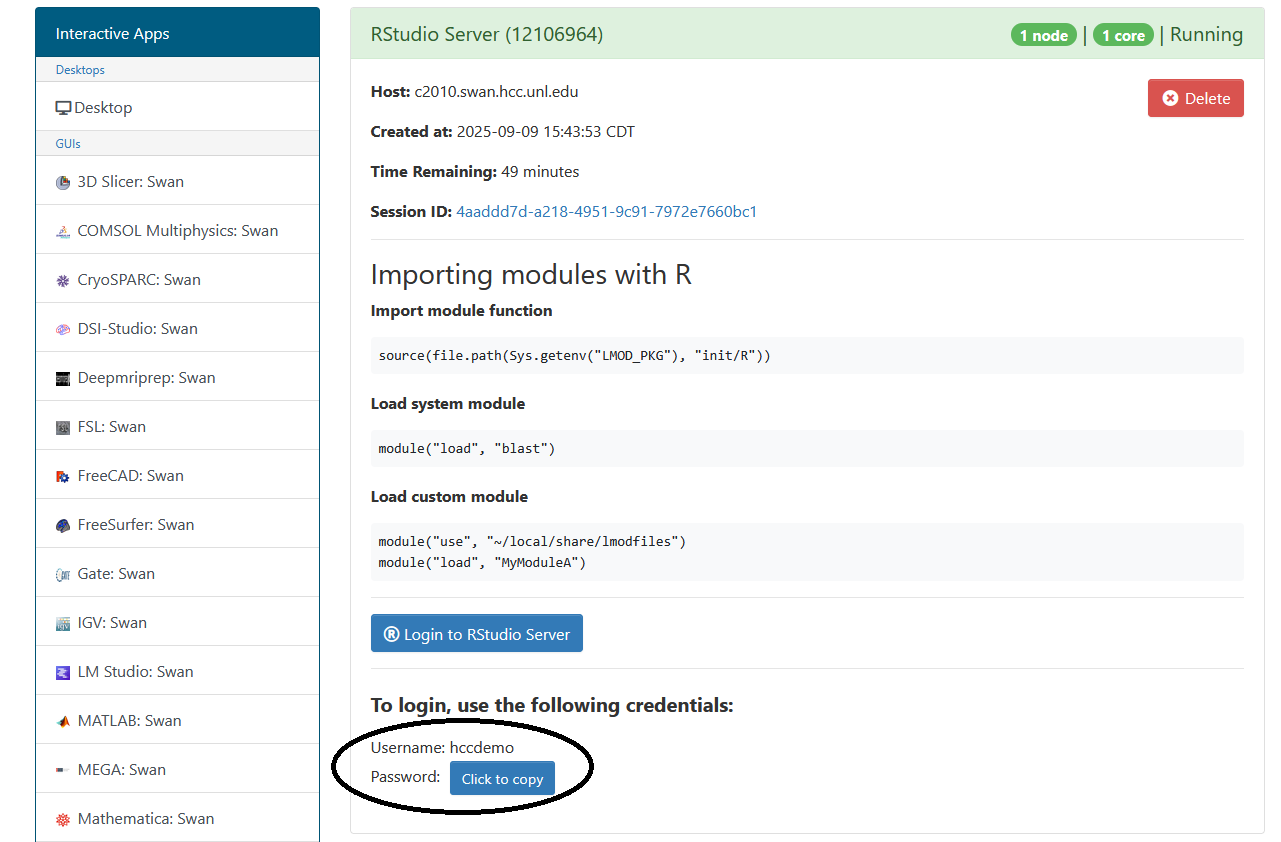
R Studio has an additional step to sign in. The application requires a different password than the one for your HCC account.
After creating the server, you will need to take note of the username and password below the "Login to RStudio Server" button. These will be your credentials for accessing the RStudio Server.
Configuration Details
JupyterLab and other Open OnDemand apps have a few configuration options.
| Option | Details |
|---|---|
| Version | Which version of the software you would like to use. Can be left alone. |
| Working Directory | Set it to /work/unlbayerhack/YOUR_HCC_USERNAME/ |
| Number of Cores | How many CPU cores you want. This can be a maximum of 16. |
| Running time in Hours | The time limit for the session. Can be a maximum of 8 hours. |
| Requested RAM in GBs | How much memory you want to use. Maximum of 62GB in a session. |
| Partition selection | Which set of hardware do you want to use. Set to batch or jupyter |
| Reservation | The name of a dedicated set of hardware for the hackathon. The name will be shared during the event and added here. |
| GRES | Used to request GPUs. More details on how to request a GPU is available here. |
| Job Constraints | Used to request a specfic type of GPU. More details on how to request a GPU is available here |
| If you want notifications via email of when your session starts. You will also need to click the check box below this field. |
Requesting GPUs
To request a GPU, you will need to at minimum add gpu:1 to GRES and change the Partition selection to gpu. If you want a specific type of GPU, please add the appropriate constraint to Job Constraints.
Reservations
The reservation for the hackathon will only be available from October 24th to October 26th. After October 26th, the reservation name will need removed from any scripts or session configurations.
Viewing Results and Transfering Data
There are multiple storage locations on Swan to store data.
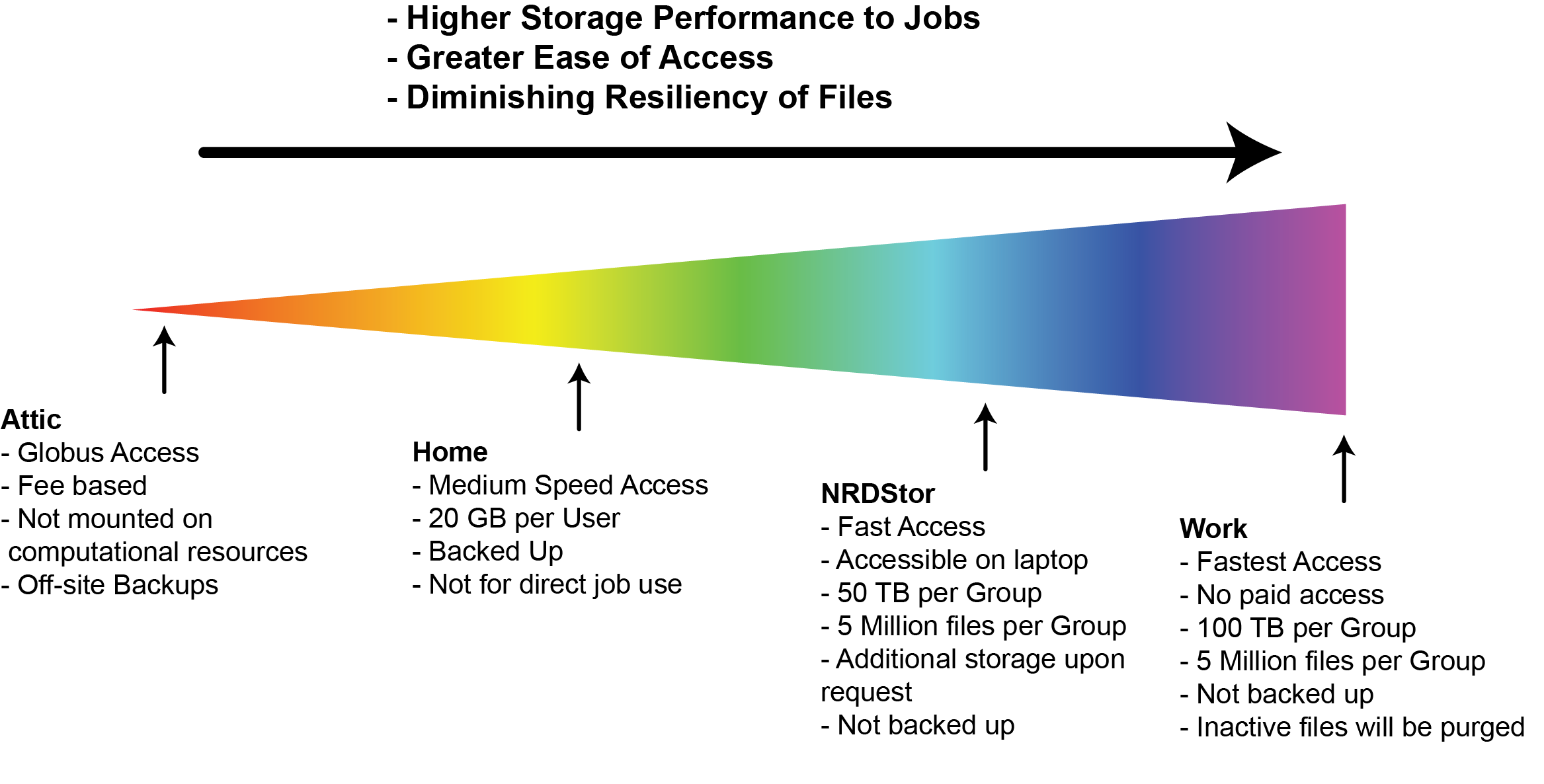

- Work – High-performance global scratch (100 TiB/group, 6-month automatic purge)
- NRDStor – General-purpose (50 TiB/group, no purge)
- Home – Swan user home directories (20 GiB/user, no purge)
- Local /scratch – Node-local flash storage for running jobs
Some bioinformatics tools will require the use of /scratch. These will be highlighted when the software is loaded. As example of using /scratch is available as a part of the blast job example.
There are also multiple methods to transfer data to and from your computer. For the hackathon using a graphical application such as WinSCP or Cyberduck may be beneficial.
NRDStor
NRDStor is able to be accessed directly from your laptop in Finder (MacOS) or File Explorer (Windows) as if it was an external hard drive.
If you wish to mount NRDStor, you will need to complete the full process of gaining SMB access to NRDStor in advance of Saturday afternoon. You will need to complete the following:
Both steps will need to be completed before Saturday afternoon to gain access as HCC staff will need to apply the correct permissions.
Additional Materials
HCC has extra training materials available to review: